Getting Started
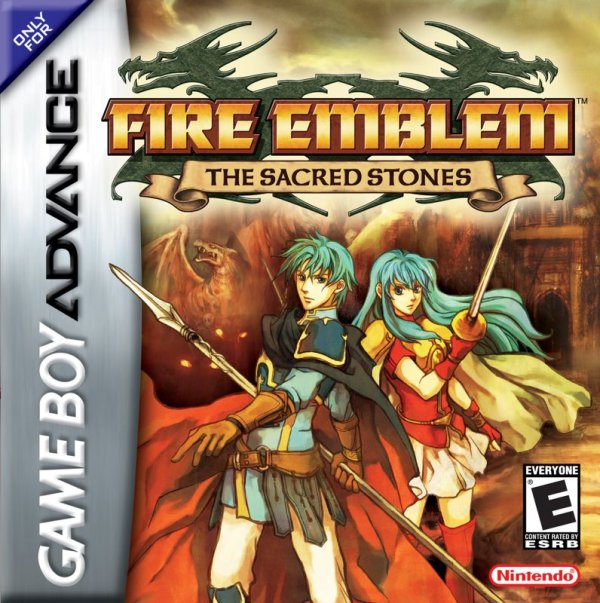
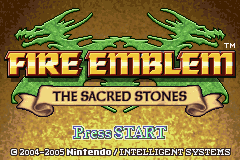
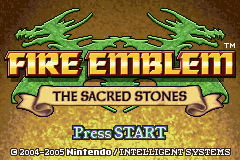
Insert the Fire Emblem: The Sacred Stones Game Pak into your Game Boy Advance and turn the power on. At the title screen, press START to bring up the main menu. Select New Game and press A. Next, select a difficulty and choose a save file (an empty file will say No Data). Finally, press A to start the game.
Difficulty Levels
There are three difficulty levels to choose from: Easy, Normal, and Hard. You choose the difficulty only when you have chosen a New Game from the main menu.
•
Easy: The ideal starting place for Fire Emblem novices. As you play, you will receive a tutorial describing controls and gameplay. •
Normal: Start here if you've already played Easy or know the game. This level features no tutorial.
•
Hard: A challenging option with no explanations or hints. Enemies are more numerous and more challenging.
Main Menu Options
If you already have saved game data, the following options are available:
•
Resume Chapter: Continue your game mid-chapter.
•
Restart Chapter: Start from the beginning of the chapter.
•
Copy Data: Copy an existing saved game.
•
Erase Data: Delete an existing saved game.
•
New Game: Start the game from the beginning.
•
Extras: Access the Link Arena and the Sound Room. More options become available as you play.
Extras
In the Link Arena, two to four people can pit their fighting teams against one another. Enter the Sound Room to hear music from the game, with more tracks becoming available as you progress.
Combat Preparations
When you reach a certain point, you will use the combat preparation screen to get ready for battles. Select the menu item you want to review and press A to move forward. Press START on this screen to start the battle.
Selecting Units
Select "Pick Units" to choose the units you want to use in battle. Press A to select and deselect units. Press SELECT to display the unit list.
•
Some units are essential to certain chapters and must be selected.
•
Selected units are in color; non-selected units are in gray.
Managing Items
Select "Items" to trade, buy, sell, and use items. You can trade items between units or send them to the supply convoy. Once you select a unit, the following menu options appear: •
Trade: Trade items with other units. •
Supply: Manage items using the supply convoy. •
List: Display a list of all items held by other units and the supply convoy. •
Give All: Send all items from the selected unit to the supply convoy. •
Armory: Buy and sell weapons and magic items. Items that cannot be used by the selected unit will appear in gray. Support Relationships
Check the affinity between units and confirm their support levels. This option is not available unless you have a certain unit in your party.
Checking Maps
Take a look at the battle map and confirm conditions. The following menu options appear on the Check Map screen:
•
View Map: Scroll over the battle map to check enemy units and the location of armories and shops.
•
Formation: Switch the position of deployed units. You cannot change the main characters' starting positions.
•
Options: This is the same as choosing Options on the map menu.
•
Save: This is the same as the Save option on the Preparation screen.
Saving
Once you've selected your units and managed your items, save to preserve your settings. Battle Map Basics
Battle maps are where the action takes place. Move your units, defeat the enemy, and move on.
Unit Types and Identification
There are three different unit types, each color-coordinated for easy identification.
•
Blue: Your units (you control these).
•
Red: Enemy units (CPU controlled).
•
Green: Other units (CPU controlled).
•
Gray: Units that have already moved for that turn.
Taking Turns
You and your enemy alternate taking turns issuing commands to your units. If there are green units on the map, they will take their turn after the enemy army has moved. When it's your turn, use the Command menu to issue orders to your troops.
Clearing Battle Maps
Each battle map is represented as a different point on the world map. Each battle map has an objective (e.g., destroy all enemy units, seize the throne) that must be reached to clear it.
•
New battle sites appear only after you clear a red-flagged battle site.
•
When the objective is "Defeat the enemy boss," the target enemy unit will have a flashing shield beside it.
•
Once a battle map is cleared, a new battle map will appear on the world map.
Defeating Units and Game Over
When units lose all their HP (hit points), they vanish from the map. Your game will end if either Erika or Ephraim falls or if you fail to meet a chapter objective. If this happens, try playing the chapter again using your last saved data. Viewing the Game Screen
Adjust the game-screen display by choosing Options on the map menu.
•
Cursor Use: Select units and locations.
•
Objective: Displays the remaining number of enemy units if the objective is to defeat all enemies.
•
Unit: If the terrain has a high DEF (defense) rating, damage taken is reduced. If the terrain has a high AVD (avoid) rating, it is harder to strike the unit standing there.