PlayStation Game Console Setup
Set up your PlayStation® game console according to its Instruction Manual. Ensure the power is off before inserting or removing a compact disc. Insert the RayCrisis™ disc and close the Disc Cover. Insert game controllers and turn on the PlayStation game console. Follow on-screen instructions to start a game. Starting The Game
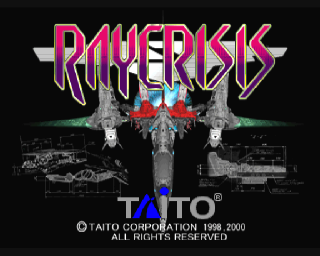
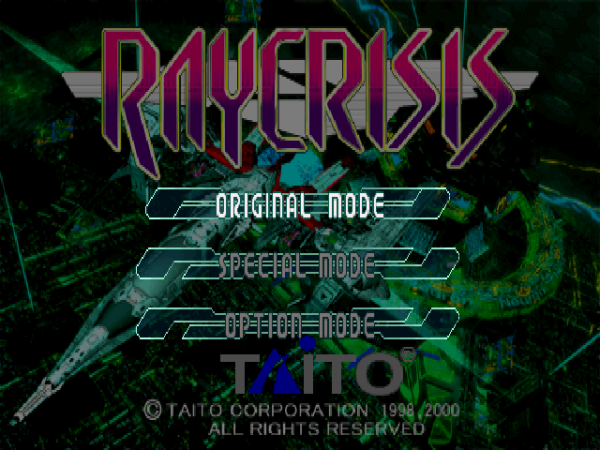
Press the START button during the opening animation to display the Title screen. The Title screen offers three choices: Original Mode, Special Mode, and Option Mode.
Original Mode
This is the Original Arcade version, a direct translation of the arcade game. All original enemies and bosses can be fought in arcade-perfect fashion. After selecting Original Mode, the Map select screen will appear. You must select three maps to play. Use the Left or Right Directional button to select a map. Press the button. Continue selecting maps until all four maps are chosen.
Once all maps are chosen, confirm the arrangement. Select "YES" and press the button to confirm. The Player Select screen will then load. Choose "NO" to cancel the current arrangement and return to the beginning.
Player Select (Original Mode)
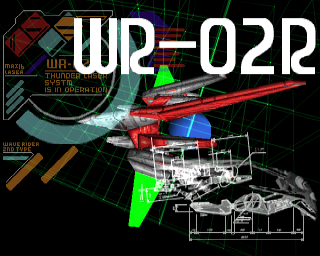
The Player Select screen allows you to choose which ship to pilot: WR-01R, WR-02R, or WR-03. Each ship has unique capabilities and special weapons.
To change the ship's color, press the L1, L2, R1, or R2 button.
After selecting your ship, press the X button to begin the game.
Map Selection
There are five different maps available, but only three can be selected.
Special Mode
Special Mode is based on Arcade Mode but includes some changes. For example, your ship will be fully equipped, and your score will decrease if encroachment reaches 100%. After selecting Special Mode from the Title screen, the Player Select screen loads. Use the L1, L2, R1, or R2 button to change the ship's color.
After deciding which ship to use, press the button. The game will then begin. Note: There is no map selection for Special Mode.
Special Mode Levels
There are seven levels in Special Mode.
Option Mode
Option Mode allows you to change system settings. The available settings are: Key Configuration, Game Configuration, Memory Card, Sound Configuration, Material, and Exit.
Key Configuration
Change button assignments for your spaceship's weapons. There are four settings for each button: Shot, Laser, Special, and Not Used.
To change a button's setting, press that button until the desired weapon is assigned. If you make a mistake, use the Select button to reset all buttons to their original settings.
After reconfiguring the controller, or to return to the Options screen, press the Start button. The new settings will be confirmed, and the screen will return to the Options screen.
Game Configuration
Modify game settings such as Player Stock, Difficulty, Vibration, and Flash Effect. Use the Up or Down Directional buttons to move the cursor to an option. Then, use the Left or Right Directional button to change the setting.
To exit and return to the previous screen, press the button.
Player Stock
Changes the number of ships available during the game. The minimum is one, and the maximum is nine.
Difficulty
Changes the game's difficulty setting. Available modes are: Easy, Normal, Hard, Maniac, and Max.
Vibration
Activates or deactivates vibration for the DUALSHOCK™ analog controller.
•
"OFF" turns off vibration.
•
"Soft" minimizes vibration.
•
"Hard" sets vibration to its maximum.
Flash Effect
Changes the intensity of screen flashing.
•
"Normal" uses the default setting.
•
"Soft" decreases the intensity.
Memory Card
Save or load games. The available options are: Load Data, Save Data, Memory Card Manager, Player Name, Auto Save, and PocketStation.
Load Data
Load game data from a Memory Card. Select "Yes" and press the button to load data. Select "No" to cancel. Do not remove the Memory Card during a save or load.
Save Data
Save the game's current settings to a Memory Card. Select "Yes" and press the button. If existing RayCrisis data is present, confirm overwriting by selecting "Yes." Select "No" to cancel. Do not remove the Memory Card during a save or load.
Memory Card Manager
Delete other game saves from the Memory Card. Select "Yes" and press the X button. All data on the Memory Card will be displayed. Move the cursor to select a save to delete,