Starting the Game
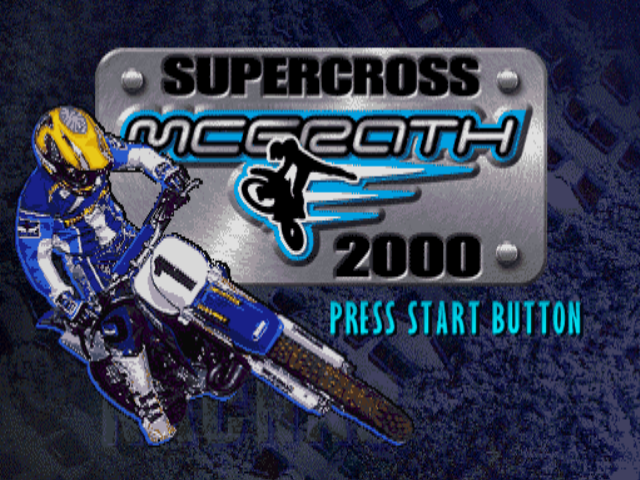
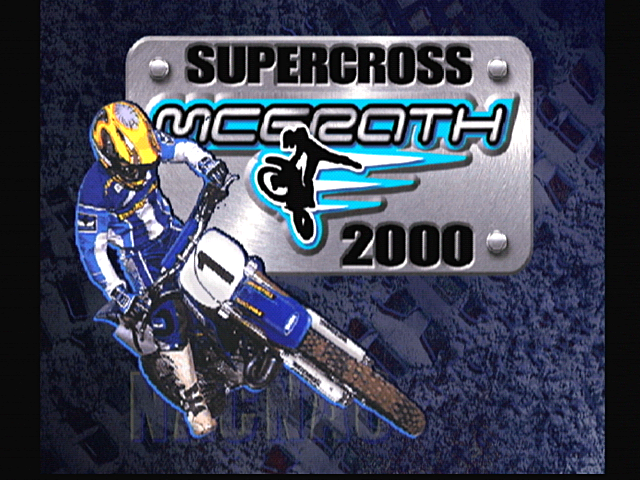
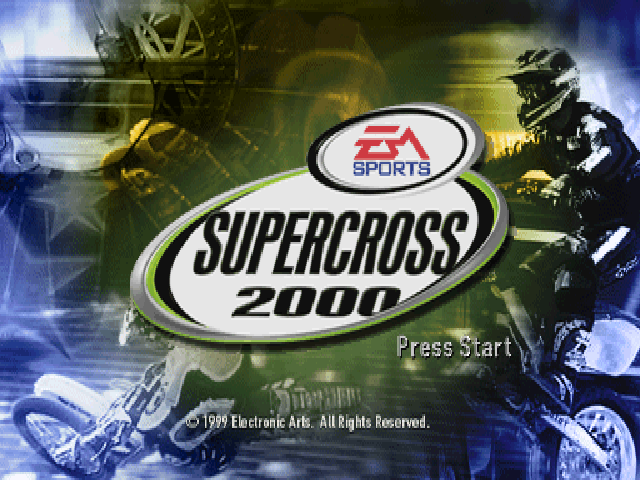
1. Set up your PlayStation game console according to its Instruction Manual. Make sure the power is OFF before inserting or removing a compact disc. 2. Insert the EA SPORTS™ Supercross 2000 disc and close the Disc Cover. 3. Insert game controllers and turn on the PlayStation game console. After the developer logos, the Title screen appears. 4. Press to advance to the Select Event menu.
Setting Up the Game
Select Event Menu
From the Select Event menu, you can start a Quick Race or Quick Freestyle event, change your difficulty level, select number of players, change game options, load a game, or select between a Single Race, Freestyle, Practice, and Season.
•
QUICK RACE (D-BUTTON TO VIEW OTHER RACE EVENTS)
•
ACCEPT HIGHLIGHTED OPTION
•
SELECT 1 PLAYER OR 2 PLAYERS (THIS OPTION IS AVAILABLE IN SINGLE RACE, FREESTYLE, PRACTICE, AND SEASON GAME MODES)
To load a game, press . For more information, see Saving and Loading on p. 15.
To set up racing options press . For more information, see Options on p. 14. Default options are listed in bold in this manual.
Quick Race/Quick Freestyle
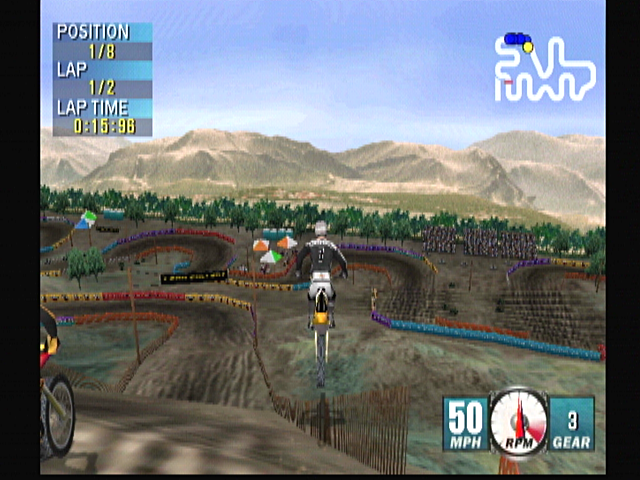
Hop on your bike and take on a field of the best Supercross riders in the world in a five-lap race or compete in a Freestyle event. QUICK RACE and QUICK FREESTYLE pick a rider and a venue for you while using all the default game settings.
To select a different rider and/or track with different game settings, select SINGLE RACE or FREESTYLE from the Select Event screen.
Event
Quick Race
Go directly into a race with the default settings. For a list of the settings, go to the Options menu from the Select Event menu.
Quick Freestyle
Begin a freestyle event with the default settings.
Single Race
A single race set against the field at any one of the 16 Championship or 5 Amateur venues. You can also race head-to-head against another rider.
Freestyle
Bust out your best stunts and tricks in a freestyle competition. See who has the best tricks up their sleeve in a two-player freestyle competition.
Practice
Make a few solo runs around a track to get up to speed and then race against your Ghost.
Season
Compete in an entire Season of 16 Supercross events.
Settings
Level
Select the level of difficulty: BEGINNER, ROOKIE or PRO.
Player
Select between 1 PLAYER or 2 Players (2 Players is only an option for a Single Race or Freestyle competition).
To select an event, D-Button to highlight the item and press to accept.
For detailed information about each of the Game Modes (except Quick Race), see EA SPORTS Supercross 2000 Events on p. 10. Getting to the Race Track
After you select a Game Event, pick a stadium to race at and choose a rider.
Selecting a Venue
EA SPORTS Supercross 2000 offers 16 of the most challenging Supercross tracks you can imagine. In addition there are five Amateur tracks that help build your skills. Each track has its own unique style that can grind up even the best riders. Riders
EA SPORTS Supercross 2000 features a full grid of Supercross and freestyle riders. Select a Rider
•
D-Button to highlight the rider of your choice and press to accept.
Create a Rider
Create a Rider to compete in any race mode.
To create a rider:
1. From the Select Rider screen, press . The Enter Rider Name screen appears.
2. Follow the onscreen prompts to create a name for your custom rider and press to accept.
3. Select a number for your rider, either 1 or 9, and press to accept. Your created rider joins the field.
To delete a created rider, highlight the created rider and press .
Customize Bike
After a rider is selected, adjust your bike so that it best suits your racing style. CC
Select between a 250cc or 400cc engine. A 250cc is a classic two-stroke engine Supercross bike with a steep power band. 400's are newer to the world of Supercross with a smoother power band and are easy to recognize by their low-end rumbling sound.
Traction
When set toward SLICK, your bike will slide easier around turns but braking will be less effective. When set toward ROUGH, your bike slides less but may work better if your gearing is set for better acceleration.
Gearing
When set toward ACCEL, your top speed is not as fast when set toward HIGH, but your bike is more manageable and has better punch at lower speeds. When at top speed, your bike is able to achieve maximum speed but it's more difficult to handle.
Shocks
With a SOFT setting, your bike has an easier ride because your softer shocks soak up all the bumps. When set toward STIFF, your



.png)


.png)
.png)


.png)





.png)
.png)
.png)



.png)


.png)