STARTING THE GAME
1. Set up your PlayStation®2 computer entertainment system according to the instructions in its Instruction Manual.
2. Make sure the MAIN POWER switch (located at the back of the console) is turned on.
3. Press the RESET button. When the power indicator lights up, press the open button and the disc tray will open.
4. Place the F1 2001 disc on the disc tray with the label side facing up. Press the open button again and the disc tray will close.
5. Attach game controllers and other peripherals, as appropriate.
6. Follow on-screen instructions and refer to this manual for information on using the software.
NOTE: When using the Multitap (for PlayStation®2), at least one controller must be connected to controller port 1-A.
STARTING A QUICK RACE
To fast forward to arcade-style action, select QUICK RACE from the Main menu. This allows you to start a 4-lap race without performing any of the set-ups necessary in other modes. Every top-six finish earns you points, which, in turn, unlock new circuits to race on in Quick Race mode.
NOTE: Default options are listed in bold in this manual.
To start a Quick Race:
1. At the Enable AutoSave? Game screen that appears at boot-up, select YES, ENABLE AUTOSAVE or NO, DISABLE AUTOSAVE and press the button. If you decide to disable AutoSave, confirm your choice at the prompt.
NOTE: If you do not have a memory card (8MB) (for PlayStation®2) inserted in MEMORY CARD slot 1, a prompt appears asking you to insert a memory card if you wish to save your progress and settings.
2. At the Main menu, press the button to select QUICK RACE. The Select Driver screen appears.
3. Press the D-Button to scroll through the available drivers and press the * button to select a driver. The Select Circuit screen appears.
NOTE: In Quick Race mode, Handling is automatically set to NORMAL, Damage is set to OFF, Race Length is set to 4 LAPS, and Assists are ON.
4. Press the D-Button to scroll through the available tracks and press the * button to select an unlocked track (at the start of the game you have the choice of SILVERSTONE, HOCKENHEIM, and MONZA). The game loads and the race begins.
A scrolling text bar at the bottom of each menu screen provides help for that screen.
SETTING UP THE GAME
From choosing your driver to adjusting camera angles, F1 2001 lets you play the game how you want to play it.
MAIN MENU
From the Main menu screen you can start a Quick Race, access Single Player modes, set up a Multiplayer game, adjust various game Options, and find out more about EA SPORTS.
•
Jump straight into the cockpit in Quick Race mode
•
Hit the track in a Single Player mode
•
Start a Multiplayer game
OPTIONS
Select OPTIONS from the Main menu screen to adjust various game settings.
AUDIO / VISUAL
Adjust the audio and visual settings to suit your preferences.
•
SOUND: Set the game's sound setting to MONO or STEREO and set volume levels for Effects and Commentary.
•
SCREEN ALIGNMENT: Position the screen on your television. Press the D-Button to move the screen and press the * button to return to the Audio/Visual screen (or press the button to return without saving changes to Screen Alignment).
•
DISPLAY ADJUST: Display a visual guide for fine tuning the brightness, contrast, and color settings on your television. Follow the instructions on-screen and press the button to return to the Audio/Visual screen.
DISPLAY OPTIONS
•
SCREEN DISPLAYS: Press the D-Button to set on-screen displays to OFF/ON.
•
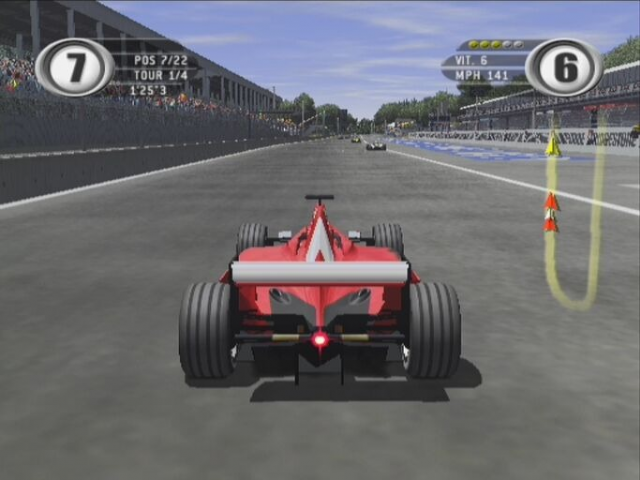
TV PANELS: Toggle ON to display up to the minute race information such as your current position and split times.
•
SCREEN FORMAT: Press the D-Button to toggle the aspect ratio for your television. Set to WIDE for an improved image on widescreen televisions.
•
CIRCUIT MAP: Toggle ON to display a the full map of the circuit on-screen, showing your progress around the track. PARTIAL displays only the relevant section of the track on-screen.
•
SPEED: Press the D-Button to toggle between displaying speeds in MPH and KPH in the game.
CONTROLLER/WHEELS
Select CONTROLLER OPTIONS from the Options screen to assign and calibrate steering wheels and to change controller configurations.
WHEEL ASSIGNMENT
Select CONTROLLER ASSIGNMENT from the Controller/Wheels sub-menu.
•
Press the D-Button to assign wheels to players.
NOTE: When a Player has a controller and a wheel assigned to them, the wheel takes priority when racing. You can also calibrate wheels for up to 4 players by selecting the corresponding WHEEL CALIBRATION option.
CONTROLLER CONFIG
Select CONTROLLER CONFIG to change the configuration of your controllers to one of the five available presets.
NOTE: It is strongly recommended that you configure all steering wheel controllers before starting a race.
To choose a controller configuration:
1. If two or more controllers are connected, press the D-Button to select the player whose controller you wish to configure.
.png)


.png)




_1.png)


.png)


 (En,Fr,Es).png)


_1.jpg)

.png)


.png)


_1.png)