STARTING THE GAME
1. Set up your PlayStation 2 computer entertainment system according to its Instruction Manual. 2. Make sure the MAIN POWER switch (located at the back of the console) is turned on.
3. Press the RESET button. When the power indicator lights up, press the open button and the disc tray will open.
4. Place the F1 CHAMPIONSHIP Season 2000 disc on the disc tray with the label side facing up. Press the open button again and the disc tray will close.
5. Attach game controllers and other peripherals, as appropriate.
6. Follow the on-screen instructions and refer to this manual for information on using the software.
NOTE
When using the MultiTap (PlayStation 2), at least one controller must be connected to Controller port 1-A. STARTING A SINGLE RACE
No qualifying, no practice, no warm up. Take on racing's elite drivers in a single race.
NOTE
Default options are listed in bold in this manual.
RACE NOW
1. At the Autosave screen, select ENABLE AUTOSAVE or DISABLE AUTOSAVE. If you select DISABLE AUTOSAVE, confirm your choice at the prompt.
If you don't have a MEMORY CARD (8MB) (for PlayStation 2) inserted in MEMORY CARD slot 1, a prompt asks you to insert a MEMORY CARD (PS2) if you want to save your progress and settings. Previously saved data is auto-loaded from boot-up.
2. At the Game menu, press to select RACE NOW.
3. At the Driver Select screen, press the D-Button to scroll through the available drivers and press * to select.
4. At the Circuit Select screen, press the D-Button to scroll through the available circuits and press to select. The game loads and the race begins.
More circuits become available the more you play. Each circuit records your best position and the number of Championship points you earn. It also counts every race you start. Every circuit that is unavailable when you start a game has a 'total required' point value. When your 'total' value of race starts and World Championship points equals or exceeds that value, the circuit is unlocked.
SETTING UP THE GAME
From choosing your driver to adjusting camera angles, F1 CHAMPIONSHIP Season 2000 lets you play the game how you want to play it.
GAME MENU
From the Game menu, you can begin a single race, set up a Multiplayer game, access the Game Modes screen or adjust various Controller, Audio/Visual, and Language options.
•
Select this option to set up a single race event.
•
Set up a Multiplayer game in Split Screen mode or Time Challenge mode.
•
Access the Game Modes screen to set up a Single Grand Prix, Custom Championship or Full Championship game.
OPTIONS
Select OPTIONS from the Game menu screen to adjust various game settings.
CONTROLLERS
Select CONTROLLERS from the Options screen to change your controller configuration to one of three preset configurations.
If two or more controllers are connected, select the Player whose controller you wish to configure.
Press the D-Button to cycle through available configurations. Press * to select a configuration and access the Vibration Setting pop-up. At the pop-up, press the D-Button to highlight VIBRATION ON or VIBRATION OFF, and press to select.
IN-GAME OPTIONS
Access the In-game Options menu to adjust settings for Assists, Sound, and Display.
QUIT EVENT
Quit the current Race or Grand Prix Weekend.
IN-GAME OPTIONS
ASSISTS
•
ASSISTS: Toggle ON, for computer-assisted steering and braking.
•
GEARS: Choose AUTO or SEMI-AUTO Transmission. When set to SEMI-AUTO, you are required to change gears manually.
•
CORNER ARROWS: Turn ON to see arrows warning you of approaching corners.
NOTE
The default setting for Corner Arrows is OFF in Single Grand Prix, Custom Championship and Full Championship game modes.
SOUND
Use the sliders to adjust volume levels for Commentary and Effects (e.g. engine noise).
Press the D-Button to move between the Sound options and press the D-Button to adjust the selected option.
DISPLAY
•
TV PANELS: Toggle ON to display up to the minute race information such as your current position and split times.
•
SCREEN DISPLAYS: Cycle between OFF, MINIMUM, and FULL.
•
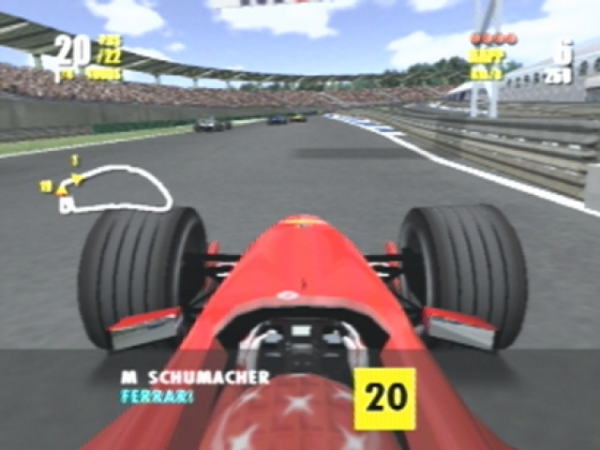
CIRCUIT MAP: Toggle ON to display a small map of the circuit on-screen, showing your progress around the track.
•
SCREEN FORMAT: Toggle between NORMAL and WIDE. Select WIDE if you are playing F1 CHAMPIONSHIP Season 2000 on a widescreen TV.
•
SPEED: Toggle the Speedometer display between MPH and KPH.
AFTER THE RACE
After each Race or Session, the Classification screen appears. This displays full final standings for the Race or Session.
When you've finished viewing the Classifications, press * to continue.
In Race Now mode, a pop-up appears asking if you wish to race again. Select YES to restart the race or NO to return to the Circuit Select screen.
GAME MODES SCREEN