GETTING STARTED
1. Set up your PlayStation®2 computer entertainment system according to the instructions supplied with your system.
2. Check that the system is turned on (the on/standby indicator is green).
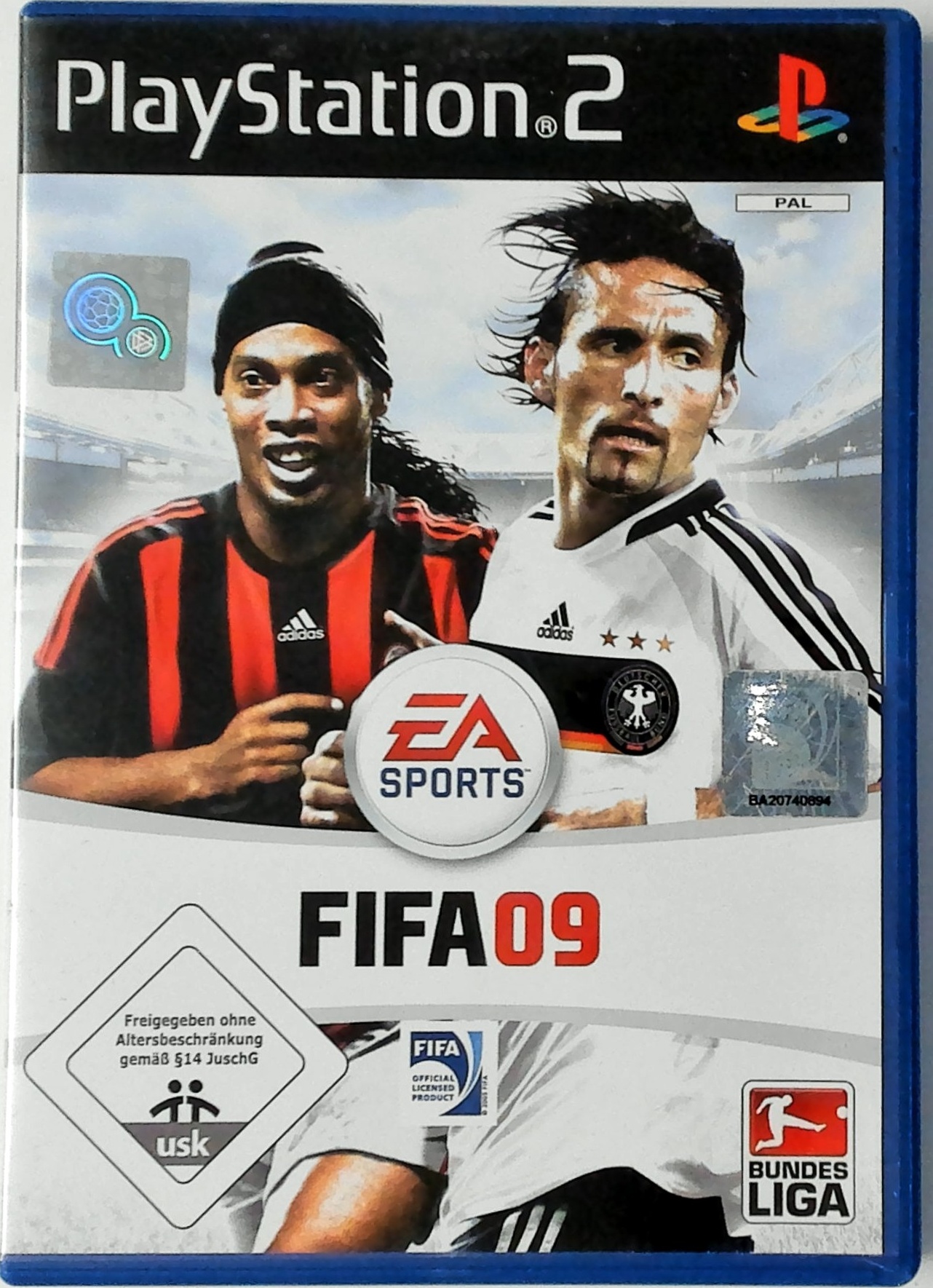
3. Insert the FIFA Soccer 09 disc in the system with the label side facing up.
4. Attach game controllers and other peripherals as appropriate.
5. Follow the on-screen instructions and refer to this manual for information on using the software.
Multitap Connection
When using the multitap (for PlayStation®2), a controller must be connected to controller port 1-A.
•
multitap connector (for PlayStation®2)
GAME CONFIGURATION
USER PROFILE
Before heading to the field, you must create a profile to save your statistics and results for FIFA Soccer 09. When starting the game for the first time, enter your name, choose your favorite team, activate/deactivate simplified controls, choose a controller configuration, and decide if you want to use the automatic save function.
If you choose to use simplified controls, your controller configuration is set for you and the automatic save function is automatically activated.
FIFA Soccer 09 includes a save file for user profiles, which can contain up to eight different profiles. Overwriting this file automatically deletes all previously saved user profiles. If you have a memory card (8MB) (for PlayStation®2) containing previously saved profiles, make sure it is inserted before launching FIFA Soccer 09 to avoid any risk of overwriting saved data (the game will send you a prompt before overwriting saved files on the memory card). Use the My FIFA 09 profile manager to manage all your existing files.
HOW TO PLAY
KICK-OFF
Press the START button from the main menu to go directly to the field with your default settings or select TEAM or BECOME PRO to play simple classic matches or Become Pro.
GAME SCREEN
SAVE AND LOAD
Before exiting a game mode or a menu where changes have been made, make sure to save your progress on a memory card. Otherwise, any unsaved information will be lost. You can manually load files by accessing the load screen (via the main menu).
GAME MODES
NEW BE A PRO: SEASONS
Advance your game career and join a club with up to three friends in Be a Pro: Seasons. Choose a player (or create your own), perfect your position, and monitor their development during their four-year career.
Overcome challenges in each match to allow your player to improve their attributes and follow the action using the 3rd person camera focused on the player.
Before going on the field, each player must either create a new player or choose an existing player to keep track of game statistics and player evolution. Choosing an already existing player can give you a head start in achieving objectives, but a created player will allow you to develop them faster.
The 3rd person camera is only available if you play solo in Be a Pro mode. When you play with your friends, the usual Be a Pro camera is used.
BE A PRO MODE CONTROLS
If you have to play as a pro, you have to think like a pro. When your team is on offense, time your runs and make a good ball call. When you are on defense, ensure protection against dangers posed by opposing players. Teamwork is essential in football and communication with your teammates is key to success. Each time you are on the field, make sure to use the following commands to increase your chances of victory.
•
Request a long pass/cross (Button)
•
Request a through pass (Button)
•
Press (in defense) (Button)
•
Take position (in defense) (Button L2 (long press))
GAMEPLAY INDICATORS
Be A Pro mode provides many of the same challenges faced by real players. Use the in-game indicators to make sure you're in the right place at the right time.
OFFSIDE
To ensure the assistant referee doesn't bring a swift end to another attacking move, make sure you keep an eye out for his flag. When you stray offside, a flag icon appears. To avoid being pulled up (and losing valuable XP), run back past the last defender to get into an onside position.
THREAT INDICATORS
For help with marking players, turn Threat Indicators ON in the Visual Game Settings screen (which can be reached via the pause menu or the Be A Pro: Seasons Central screen). Players you should be picking up are highlighted by exclamation marks. Make sure you track them!
SET PIECES
If your team is awarded with a free kick, corner, or penalty, the first player to press the button displayed on-screen will take the kick.
FATIGUE
Make sure your player lasts the 90 minutes! If you run around the pitch non-stop, the DUALSHOCK®2 analog controller vibrates, indicating that he needs a rest. Release


_1.png)
_2.png)


_1.png)









.png)


_1.jpg)




_1.jpg)


.png)


.png)


_1.png)