Loading the Disc
Set up your PlayStation®2 computer entertainment system according to its instruction manual. Make sure the MAIN POWER switch (located in the back of the console) is turned on.
Press the RESET button. When the power indicator lights up, press the open button and the disc tray will open. Place the Hot Wheels™ World Race™ disc in the disc tray with the label side facing up. Press the open button again and the disc tray will close. Attach the game controllers and other peripherals as appropriate. Follow the on-screen instructions and refer to this manual for information on using the software.
Starting the Game
Getting started is easy. First, if you have a Memory Card (8MB)(for PlayStation®2) in your system, you'll have the option to turn the Autosave feature on.
If you choose Autosave, your progress will be saved automatically. If you choose not to use Autosave, you will be reminded to save your progress.
Once you have selected your Autosave option, press the START button to open the main menu. But before you begin, check out the options and set up the game just the way you like it.
Options Menu
Customize the game settings from the Options menu.
•
Sound Level: Set the sound effects level with this option.
•
Music Level: Set the background music level with this option.
•
Controls: Choose from three preset controller layouts for each player.
•
Screen Position: Alter the display area with this option.
•
Data: Save, Load or toggle Auto Saving with this option.
•
Vibration: Turn the DUALSHOCK®2 analog controller vibration feature ON or OFF.
•
Credits: See the names of the people behind Hot Wheels™ World Race™ here. Main Menu Options
Challenge
Before you compete in the World Race™ events, it's wise to complete the Challenge Mode. Only once you have completed all five of the challenges will you be fully prepared for the extreme high-energy World Race™ circuits.
Single Player or Multiplayer
When you select the Single Player Mode, you can choose among three types of races: Quick Race, Time Trial or League. In Multiplayer Mode, both the Quick Race and League options are available, but not the Time Trial.
Quick Race
Select the Quick Race Mode to launch yourself straight into the action. Choose your team and car, pick your track then go, go, go! Race against your friends by selecting Quick Race Mode from the Multiplayer Mode menu.
Time Trial
Time Trial is the mode for pure racers: no other cars are on the track. It's just you against the clock. Time Trial is only available from the Single Player Mode menu.
See if you can get the number one slot on the best times table or beat your friends' best times!
League
Prove you are the best of the best in League Mode. Start in Rookie League and take part in a series of gruelling races. Be prepared to master a series of twisting, gravity defying roller coaster tracks on the league circuit.
To continue in League racing, you must earn a minimum amount of points in each race. The amount varies from race to race, but if you don't earn enough, you're out! League racing is for the bold and the daring. You'll know soon enough if you have what it takes.
You earn points based on your finishing position in the race:
At the end of a race, you will have the option to Retry the race. If you were disqualified, or if you think you can do better next time, go ahead and try again.
If you are eating the other drivers' dust and get too far behind, you can hit the START button to pause the game and then choose Retry before you even finish. Practice makes perfect.
You can only Retry so many times. In the Rookie League you have 3 Retries, in Veteran League you have 2 and in Elite League only 1.
If you complete the Rookie League, you'll unlock the tough Veteran League, and if you complete Veteran League you'll unlock the ultra-tough Elite League.
To play in a co-operative league with your friends, select League Mode from the Multiplayer Mode menu.
Saving and Loading
If you have disabled Autosave, you will need to save your progress and records by selecting the Save function from the Data option. You may also be prompted to save at various points in the game, such as after quitting a League or after setting a new record and quitting Quick Race for example.
If you wish to load saved data then you can select the Load function from the Data option.
NOTE
Hot Wheels™ World Race™ will auto load any data it finds when it starts up. Driving Basics
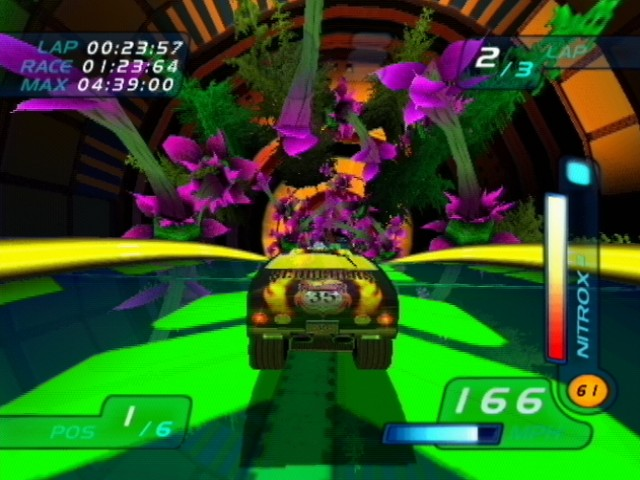
Once you're behind the wheel of the car of your choice, you will see the track ahead of you. Other than that, you have two gauges:
.png)

.png)
.png)
.png)

.png)

.png)

_1.png)
_1.png)
_1.png)
.png)


.png)

.png)
.png)



.png)

.png)


_1.png)


