Starting the Game
To start the game:
•
Make sure your Super Nintendo Entertainment System® (Super NES) is turned off. •
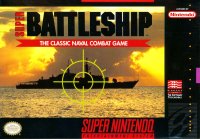
Put the Super Battleship™ Game Pak in your Super NES.
•
At the title screen, press Start.
•
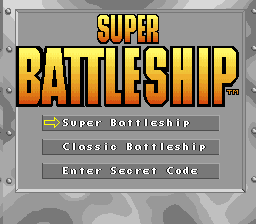
Use the Control Pad to select an option, then press A:
•
Super Battleship—Play with overhead and closeup battle views. Select a mission, then press A.
•
Classic Battleship—Play on a screen similar to the board game. •
Enter secret code—If you know a secret code, use it to choose a Level and Mission. See Secret Codes.
The Command Post
The Battleship Command Post gives an overview of your battle field, offers tactical options, and can show radar or sonar as needed. From here you give commands to your fleet during a mission. You also use the Command Post to assess ship damage and undertake repairs after an enemy encounter.
To become a successful Naval commanding officer, you need to know how to maneuver your fleet on a mission, and how to use weapons and strategy to destroy the enemy. The best officers also know how to assess and repair damage to their ships. Tactical Options
From the Command Post, press Y to toggle between Radar and Sonar in the green circle on the right of the screen.
Use the Control Pad to highlight one of the tactical options on the lower left of the screen, then press A to use the options as shown.
•
Move Ship - Position your fleet. A grid of squares appears showing where the current ship may move. Use the Control Pad to place the cursor where you want the ship, then press A. You can reposition each ship or choose Prior Orders to let a ship continue its course.
•
Target Weapons - Aim your current weapon. Press X to cycle through available weapons, which may include the main gun, torpedoes, depth charges, and/or missiles. Use the Control Pad to move the cursor onto an enemy target, then press A. See Man Your Battle Stations.
•
Prior Orders - Lets a ship continue on its current course. You can also pass a turn for a beached ship.
•
Status Display - Switches to the Status Display for the current vessel. See Damage Control.
You can press Select to see two more options:
•
G - Go back to the game screen and start a mission.
•
Fleet Display - Switches to the Status Display for the entire current fleet. See Damage Control.
Press Select again to return to the normal Command Post view.
Damage Control
The Fleet Display and Status Display options let you monitor the condition of one ship or all vessels after an engagement.
Fleet Display
Note: From the Fleet Display screen, use the Control Pad to highlight a ship, then press A. The Status Display screen appears for that ship.
Status Display
The full screen status display is a schematic side view of the ship, its ammunition, and any damage. From here, you can give Damage Control teams their repair assignments. Use the Control Pad to highlight a damaged area for repair, then press A. If your Damage Control teams are hot, you may have a chance to make these repairs:
•
Gunnery Hit—both Stern Guns and Bow Guns
When damage repair is done, press Select to return to the Command Post.
Man Your Battle Stations
The main menu offers two play options, Super Battleship and Classic Battleship, with different views.
Super Battleship Views
If you choose Super Battleship on the main menu, you arrive at the Command Post, an overhead view of the naval battle.
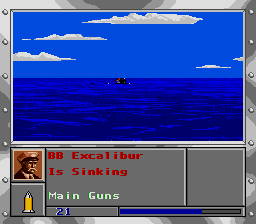
After you are in a position to successfully hit your enemy, choose Target Weapons. Press X to toggle between the main guns, torpedoes, missiles, or depth charges. Press A to activate that weapon. If your chances of a hit are good, a side view of the enemy appears. In the side view, press A to fire a weapon. You can also use the Control Pad in the side view as follows: •
Main Guns: Your crosshairs are centered on the horizon. Press the Control Pad to aim your guns.
•
Torpedoes: Press ▶ and ◀ to move the torpedo rack; press ▲ and ▼ to change the spread of torpedoes.
•
Missiles: Press ▶ and ◀ to control the flight path and lock onto an enemy ship.
•
Depth Charges: You see an underwater view. Press ▶ and ◀ to control the speed of your boat on the surface; press ▲ and ▼ to set the depth at which the charges detonate.
With luck you'll hit your target without getting hit. Sometimes, even in range, you miss, based on the speed of the other ship and your aim. Watch for the reload message. You are clear to fire away again!
Classic View
If you choose Classic Battleship on the main menu, you get a view that is similar to the board game. Use your game controls to position your ships on the grid, aim your weapons, and fire.
Battle Craft
The game includes three categories of vessels, friendly naval vessels, enemy vessels, and neutral ships.
Friendly Naval Vessels
Depending on the Level and Mission, you command these types of ships:
•
Patrol Boat - A small, usually fast ship with few weapons. These are your most expendable ships.
•
Destroyer Escort - An expendable warship that accompanies and protects other ships.
•
Destroyer - A real warship. This is a non-expendable scout and outrider for your
.png)


.png)


.png)


 (En,Fr,De).png)
.png)
.png)
.png)
.png)
.png)

.png)


_1.png)


