GETTING STARTED
Console Setup
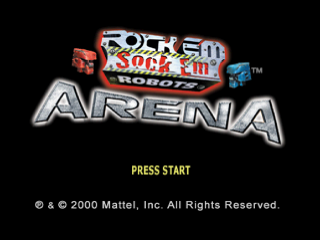
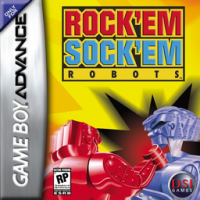
Set up your PlayStation® game console according to the instructions in its Instruction Manual. Make sure the power is off before inserting or removing a compact disc. Insert the Rock 'Em Sock 'EM™ ROBOTS ARENA disc and close the Disc Cover. Insert game controllers and turn on the PlayStation® game console. After the opening movies play, the Title Screen appears. Press START to bring up the Main Menu. Memory Card
A Memory Card (sold separately) is required to store your saved games and options settings. Insert a Memory Card into the PlayStation® game console before starting play. Do not remove a Memory Card while saving or loading games; doing so could damage game data. Memory slots are player specific. To load a robot as player 1, the memory card for that robot must be in slot 1 (or be in slot 2 to load as player 2).
Game Controls
Quick Start
To jump right into Rock 'Em Sock 'EM™ ROBOTS ARENA action, press START once the Title Screen has loaded, and select Versus Mode from the Main Menu.
Choose your robot and your opponent, by using Left/Right Directional Buttons to cycle through the bots, and pressing X to select them. Once both combatants have been chosen, pick the arena to fight in. Use Left/Right Directional Buttons to scroll through the options, then press X to choose one and start the game!
MENUS AND SCREENS
After the opening movies play, the Rock 'Em Sock 'Em ROBOTS ARENA Title Screen appears. Press the START button to bring up the Main Menu. From this screen you have several choices. Use Up/Down Directional Buttons to highlight an option, and press to select it.
•
Versus Mode: Pit your robot against the AI or another human player in a straight-up arena showdown.
•
Career Mode: In this single player game, you choose a robot to battle up through the ranks of three Rock 'Em Sock 'Em ROBOTS ARENA leagues. Do you have what it takes to win the Gold Belt?
•
Stakes Mode: You and a friend can have your robots duke it out, with your own special parts as the prize!
•
Practice Mode: Practice your moves in the Training Arena, before you take on the league.
•
Options: Open the Options Menu, where you can configure match, sound, control and Memory Card settings.
•
Memory Card: Choose to Load or Save a career game, then select which Player to load or save.
Battle Of The Bots
For metal-grinding, bolt-popping action, against the AI, or another player, choose Versus Mode from the Main Menu. This brings up the Choose Robots screen, where you can pick a bot to fight with.
At first, you will only be able to fight robots with Standard equipment. But once you defeat a bot with Upgraded equipment in Career Mode, you unlock that bot and all of his gear. Once you pick your robot, you can select your opponent, or a second player can choose their bot. Once both combatants have been selected, choose the arena to fight in, then press X to select one and start the game.
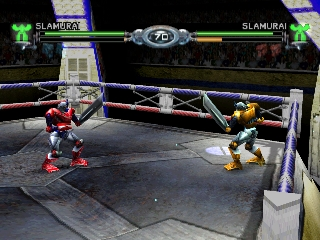
Once the arena loads you can duke it out with your opponent. The number and length of the rounds, along with other fight options, must be set from the Options Menu before you begin play. You can pause the game at any time by pressing the START button, and choose to either Quit the game, or Resume when you are ready.
Fighting For Parts
Nothing beats the thrill of matching up against a skilled opponent, with your prized plasma cannon on the line! Choose Stakes Mode from the Main Menu to go head to head with another player, risking equipment from your career robots' inventories.
Because this mode allows you to fight against another player, and wager a part of your robot on the outcome, you can only play in Stakes Mode if you have a saved career game. As you play through the league, you will win parts from other robots you detach during the fights, as well as earning prize money with which to buy additional parts (Note: money won during a career represents robot shop points only). These make up your equipment inventory.
When you are ready to play in Stakes Mode, make sure each player has placed the Memory Card with their saved Career Game into the Memory Card slots. From the Stakes Menu, use the Up/Down Directional Buttons to sort through your parts by location; either Left Arm, Right Arm, or Legs. Then use the Left/Right Directional Buttons to scroll through available parts of that type. The strengths and weaknesses of each part are shown graphically.
Keep in mind that all parts are not of equal value. Upgraded parts are worth more than Standard parts, and some parts are more powerful than others, as well as being more expensive, or harder to win. Do not wager a part you can't afford to lose!
When you have decided, press to ante up the highlighted part. Your opponent