PLAYSTATION SETUP
To load and run Rush Hour on your Playstation™, follow these simple instructions. Set up your Playstation™ game console according to the instructions in its Instruction Manual. Make sure the power is off before inserting or removing a compact disc. Insert the Rush Hour disc and close the CD door. Insert game controllers and turn on the Playstation™ game console. Follow on-screen instructions to start the game. Console Top View
Console Front View
STARTING THE GAME
To play Rush Hour on your PlayStation™ game console: 1. Set up your PlayStation™ game console in accordance with the instruction manual supplied with the system. 2. Follow your system directions to open the Disc cover and place the CD onto the bed of the drive, ensuring the printed side faces upwards.
3. Close the Disc cover. If the unit is switched off, press the POWER button to begin play. If the unit is already on, press the RESET button.
4. Now follow on-screen instructions to start the game.
WARNING
It is advised that you do not insert or remove peripherals or Memory cards once the power has been turned on.
Make sure you have enough free blocks on your Memory card before commencing play.
MENUS
USING MENU SCREENS
Use the Directional buttons to highlight required options. Press the ✖ button to confirm. Press the △ button to return to the previous menu.
TITLE SCREEN
•
START: Go to the MAIN MENU.
MAIN MENU
Use the Directional buttons to highlight required menu. Press the ✖ button to confirm.
•
ONE PLAYER: Go to the One Player Game Settings Screen
•
TWO PLAYERS: Go to the Head 2 Head Settings Screen
•
AUDIO OPTIONS: Go to the Audio Options Screen
•
VISUAL OPTIONS: Go to the Visual Options Screen
•
CONTROLLER: Go to the Controller Options Screen
•
MEMORY CARD: Go to the Memory card Settings Screen
•
BEST TIMES: Go to the Best Times Screen
ONE PLAYER GAME SETTINGS SCREEN
•
RACE MODE: Use the Left and Right Directional buttons to choose the type of race you want to compete in: CHAMPIONSHIP, SINGLE RACE or TIME TRIAL.
•
DIFFICULTY: Use the Left and Right Directional buttons to choose your own rank. The difficulty level ranges from NOVICE, through INTERMEDIATE, up to PROFESSIONAL.
•
AUTO BRAKING: Use the Left and Right Directional buttons to turn the Auto Braking option ON or OFF.
•
VEHICLE CLASS: Use the Left and Right Directional buttons to choose the type of vehicle you want to drive: HIGH PERFORMANCE or HEAVY METAL.
•
CHECKPOINTS: Use the Left and Right Directional buttons to turn the Checkpoints ON or OFF.
•
GHOST CAR: Use the Left and Right Directional buttons to turn the Ghost Car ON or OFF. This option is only available in TIME TRIAL MODE.
HEAD 2 HEAD SETTINGS SCREEN
•
DIFFICULTY: Use the Left and Right Directional buttons to choose your own rank. The difficulty level ranges from NOVICE, through INTERMEDIATE, up to PROFESSIONAL.
•
START DELAY: Use the Left and Right Directional buttons to choose a time handicap from 0 to 30 seconds. This will give a headstart to inexperienced players when competing head-to-head with more experienced players.
•
AUTO BRAKING: Use the Left and Right Directional buttons to turn the Auto Braking facility ON or OFF.
•
VEHICLE CLASS: Use the Left and Right Directional buttons to choose the type of vehicle you want to drive: HIGH PERFORMANCE or HEAVY METAL.
•
SLOW CAR BOOST: Use the Left and Right Directional buttons to turn the Car Boost ON or OFF.
AUDIO OPTIONS
•
MUSIC: Use the Left and Right Directional buttons to program the music tracks to play Randomly, Sequentially, by name, or just turn the music OFF. No more fiddling with the car stereo as you drive!
•
MUSIC VOLUME: To adjust the volume use the Left and Right Directional buttons to choose from 0% to 100%.
•
SOUND MODE: Use the Left and Right Directional buttons to choose between Mono / Stereo / QSound / Dolby Surround.
•
SPEECH VOLUME: To adjust the volume use the Left and Right Directional buttons to choose from 0% to 100%.
•
SOUND EFFECTS VOLUME: To adjust the volume use the Left and Right Directional buttons to choose from 0% to 100%.
•
AMBIENT VOLUME: To adjust the volume use the Left and Right Directional buttons to choose from 0% to 100%.
•
ENGINE VOLUME: To adjust the volume use the Left and Right Directional buttons to choose from 0% to 100%.
VISUAL OPTIONS
While on this screen hold down the ✖ button and use the Directional buttons to center the screen to suit your television.
•
SCREEN MODE: Use the Left and Right Directional buttons to choose between Normal / High Res / Widescreen.
•
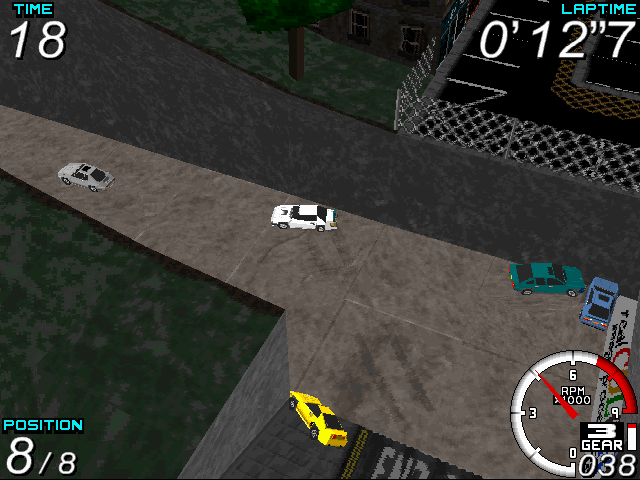
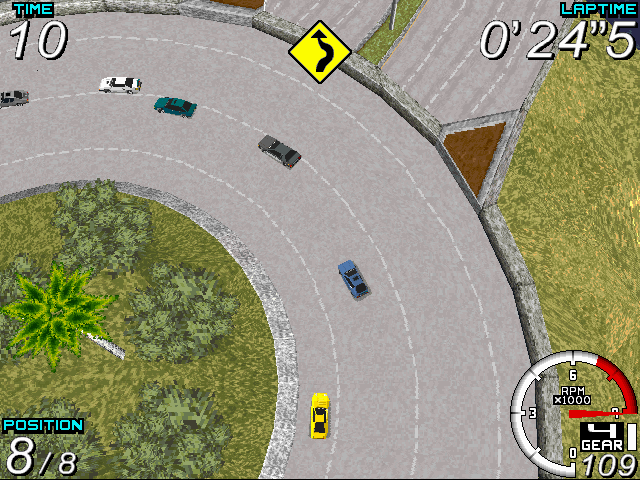
DIRECTION ICONS: Use the Left and Right Directional buttons to choose between ON or OFF. The Direction Icons appear in game at the top of the screen as yellow warning signs. These signs give notice of upcoming road
.png)

.png)



_1.png)
.png)
.png)