Set Up
Set up your PlayStation game console according to its Instruction Manual. Make sure the power is off before inserting or removing a compact disc. Insert the STAR GLADIATOR disc and close the CD door. Insert game controllers and turn on the PlayStation game console. Follow the on-screen instructions to start a game. Starting Star Gladiator
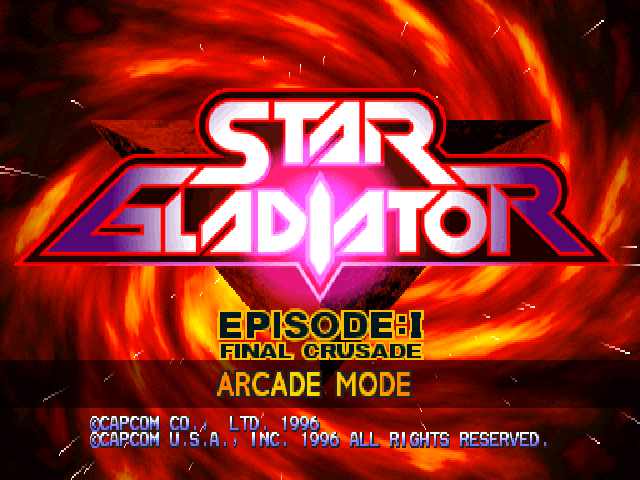
After loading STAR GLADIATOR, watch the introduction sequence or press START to jump to the title screen. Press START again to bring up the Mode Select screen.
There are 4 modes of play and the Option Mode. Use the Directional Button to highlight a mode and press START to select the mode.
Game Modes
Arcade Mode
In this mode, you select a character and fight your way through computer-controlled characters. It is a one-player game, but a second player can join in at any time.
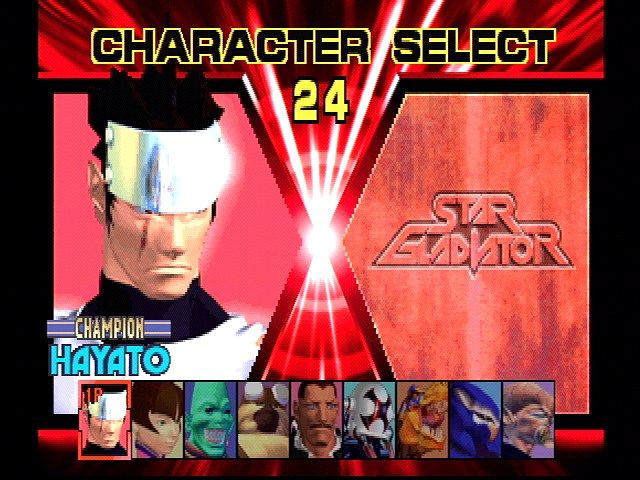
To join in, press the START button on the opposite controller. The character select screen will then appear.
At the character select screen, use the Directional Button to highlight a character then press START to select the character. Press START to begin your game.
To adjust your button configuration during gameplay, press START to pause the game. From the menu that offers CANCEL, CONFIG and EXIT, select CONFIG and press the O Button. Follow the on-screen instructions to adjust the configuration.
From the pause menu, select CANCEL to return to gameplay or EXIT to go back to the Mode Select screen.
VS. Mode
VS. Mode is the classic 2-player contest. You will fight one match, then return to the character select screen.
Use the Directional Button to highlight this mode from the Mode Select screen and press START to select it. You will then be presented with the character select screen. Use the Directional Button to highlight a character then press START to select the character.
Adjust the number of stars for your character skill (the more stars you have the better your character's abilities) by pressing the Directional Button ←or→, then press ↓or ↑ to move control to Stage Select. The default setting is for RANDOM stage, so press ←or→ to change the stage. Press START when you are finished to begin playing.
•
Note: Set the "Shortcut Mode" to "on" in the Option Mode to set-up your VS. Mode game more quickly.
Group Battle Mode
The Group Battle Mode allows two players to have teams of up to 5 characters battle in a series of one-round matches. Select GROUP BATTLE MODE from the Mode Select screen and press START. Then adjust your options at the GROUP BATTLE screen:
•
VS. TYPE SELECT - Choose the set-up for each group between a 1-player game (HUM vs. CPU), 2-player (HUM vs. HUM) or a demo (CPU vs. CPU).
•
RECOVERY TYPE - This determines how a group's vitality recovers after each match. Choose from: ALL RECOVERY (full vitality recovered), TIME RECOVERY (the more time remaining after victory means more recovery) or NO RECOVERY.
You can then select the number of characters in a group. To determine the number of characters, adjust the number of plates by pressing the Directional Button ←or→ and press any button when finished.
When playing a HUM vs. CPU match, the CPU will have the same number of characters as you do. When watching a CPU vs. CPU demo, the number of characters will be random.
Select the order that characters will fight by highlighting a character and pressing any button. You will automatically select the order for all the plates you chose. To choose randomly, press the START button before selecting any characters.
After the battle, results will automatically be shown. You will then have 3 options:
•
CHANGE SETTING - Returns to the Group Battle setup screens and you can change your settings and begin a new battle.
•
CONTINUE - Goes back to the number of characters select screen.
•
EXIT - Returns to the Mode Select screen.
Training Mode
This mode allows you to study and practice Plasma Combos, Plasma Reverses, Guards and other general moves. There is no vitality gauge, and Ring Outs are eliminated. You can do as many Plasma Strikes as you want.
At first, select your character and your opponent character. Press START to begin training. You will see the Plasma Combo gauge at the top left of the screen and a chart at the top right to learn your character's chain of combos.
As you attempt a combo, icons will appear in order on the Plasma Combo gauge to show which attack buttons (A, B or K) are necessary to do the combo. To break a combo at any point during "creation" press G.
The icon will be shaped in 3 different ways to show you how to guard against the move when fighting against the character with which you are training. When you successfully connect with an attack or combo, the amount of damage from that attack and the total damage from the combo will be displayed.
If you press START during a TRAINING session, you will be presented with the training option menu:
•
CPU ACTION: This determines whether the computer opponent will attack or not. If you set this to ON, the computer will attack regularly. If set to OFF, the computer will stand still. •
CPU GUARD: When set to OFF, the CPU will not guard. If set to ON, the first hit will connect, but the CPU will guard subsequent attacks. This option is effective only with CPU ACTION set to OFF. 





.png)

.png)


_1.png)
.png)






.png)
