Getting Started
1. Make sure the POWER switch is OFF.
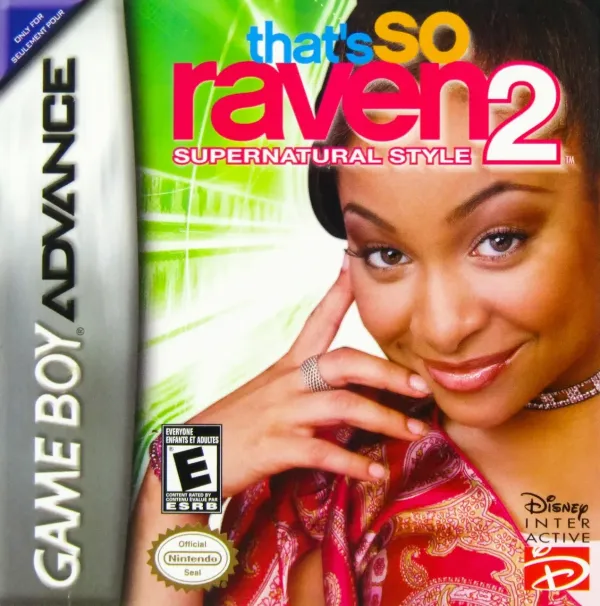
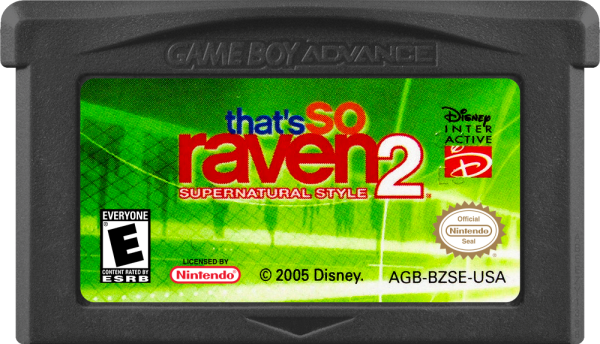
2. Insert the Disney's That's So Raven 2 Game Pak into the Game Boy Advance slot.
3. Turn the POWER switch ON.
NOTE: The Disney's That's So Raven 2 Game Pak is for the Game Boy Advance system only.
Title Screen
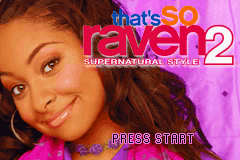
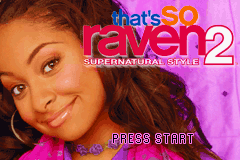
When the title screen appears, press Start to proceed to the Notebook screen.
Menu Options
•
Bonus: Create outfits in the Fashion Portfolio; Buy clothing and other items in the Raven Store with money that you collect throughout the game; and view character bios and other information in the Special Material section. •
Options: Turn "On" or "Off" the Music, Sound and Hints, and change the game's Language.
•
Credits: View the credits of all the talented people that worked on this game.
Pause Menu
Press START to pause the game. From the pause menu you may access the Fashion Portfolio, select View Vision to see how much of Raven's vision has been completed; select Quick Save to save your progress; access the game's Options; or select Quit Game to return to the Main Menu. Fashion Portfolio
From the Fashion Portfolio, you can mix and match Raven's wardrobe to make new and fun outfits. Use the +Control Pad Up/Down to switch between Hats, Tops and Bottoms. Use the +Control Pad Left/Right to change clothes in each category. Press the L Button or R Button to change colors using your unlocked Color Tints.
Add to Raven's wardrobe by finding Fashion Coins throughout the game, or by buying new clothing at the Raven Store.
Save Outfits
Once you create an outfit that you like, you can save it by pressing Start and selecting one of four design slots. If you select a slot that already has an image of a person next to it, you will overwrite the previously saved outfit.
Load Outfits
To view outfits that you have saved, press Select, and then select one of the 4 design slots.
Startup
1. Make sure the switch (POWER) is in the OFF position.
2. Insert the Disney's That's So Raven 2 game cartridge into the Game Boy Advance slot.
3. Slide the switch (POWER) to the ON position.
NOTE: The Disney's That's So Raven 2 cartridge only works with the Game Boy Advance game system.
Intro Screen
When the intro screen appears, press Start to access the Notebook screen.
Notebook
Choose one of the three saved game slots. If the slot is empty, choose New to start a new game. If the slot already contains a saved game, you can choose Load to access the game's main menu, or Delete to erase the saved game.
Main Menu
•
Play: Start playing. If you choose a saved game, the last played level will automatically be highlighted. Use the + button on the controller to browse unlocked sections and levels. Press the A button to make your choice.
•
Notebook: Return to the notebook to load another saved game or start a new game.
Bonus
•
Create outfits using the Wardrobe (Fashion Portfolio).
•
Buy clothes and other items in the Raven Store with the money you accumulate during the game. •
Consult biographical data of characters and other information in the Special Information section (Special Material).
Options
Turn (On) or turn off (Off) music (Music), sound (Sound) and hints (Hints), and change the game language.
Credits
Consult the credits for the names of all talented people who worked on this game.
Pause Menu (Main Menu Context)
Press the START button to pause the game. From the Pause menu, you can access the Wardrobe (Fashion Portfolio); choose Vision Overview (View Vision) to see how much of Raven's vision has been completed; choose Quick Save (Quick Save) to save your progress; access the game Options; or choose Quit Game (Quit Game) to return to the main menu. Summary Screen
Press Select to access the summary screen. From this screen, you can check the current objective, how many items you have collected in the level, and how many items remain to be found.
You can also return to the level selection screen by pressing the A button.
Wardrobe (Fashion Portfolio)
Portfolio Found: 9 / 15.
From the Wardrobe, you can arrange and match Raven's clothes to create new and fun outfits. Use the up/down of the controller + to choose hats, tops or bottoms. Use the left/right of the controller + to change clothes in each category. Press button L or button R to change color using the unlocked color palette.