Getting Started
To start playing BOMBERMAN MAX 2, follow these steps:
•
Turn off your Game Boy® Advance System.
•
Insert the BOMBERMAN MAX 2 Game Pak into your Game Boy® Advance System.
•
Turn on your Game Boy® Advance System.
•
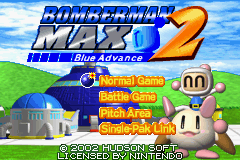
Press START to bypass the demo sequence and display the Title Screen.
Important Note
If nothing appears on the screen when you turn the power on, turn the power off, check to make sure the Game Pak is inserted correctly, and then try again.
Game Modes
BOMBERMAN MAX 2 features two primary modes of play:
Normal Game
This is a one-player game mode where the goal is to clear all the stages.
Battle Game
In this one or two-player game mode, you can battle characters called Charaboms that you befriend during the Normal Game Mode. Using the Game Boy® Advance Game Link® Cable, you can link up and battle head-to-head against another player.
Normal Game Mode Options
When selecting to play in Normal Game Mode, two options appear on the Title Screen:
•
New Game: Starts a new game in One Player Mode.
•
Continue: Allows you to play a previously saved game.
•
A list of available Save Files will appear.
•
Use the Control Pad UP or DOWN to select the desired Save File.
•
Press the A Button to load it.
•
If more than one stage was completed in the saved game, the Stage Selection Screen will appear. Use the Control Pad to select the desired stage and press the A Button.
In-Game Status Indicators
•
Lives: Represents the number of lives you have in reserve.
•
Enemies Remaining: Shows how many enemies are left or how many items remain to be gathered to clear the area.
•
Bombs Counter: Shows how many bombs you can place at one time. This starts at one and can increase to a maximum of four as the game progresses.
•
Firepower of Bomb Blast: Shows the distance each bomb blast will travel. This starts short but increases as the game progresses.
Playing the Game
Your overall goal is to clear each area by defeating enemies with bombs. You must destroy "Soft Blocks" that block your path by moving next to them and pressing the A Button to drop a bomb. Remember to move away from the bomb before it explodes.
You lose a life if:
•
You are caught in a bomb blast.
•
The clear area timer reaches zero.
If you lose all your lives, the game ends. When an area begins, the Area Objective Screen displays the conditions you must meet to clear the area.
Power Ups
Sometimes, destroying "Soft Blocks" will reveal Power Ups. Collect all uncovered Power Ups to help you in your quest.
Receiving Charaboms
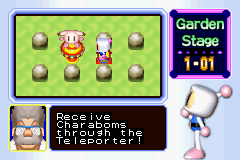
The goal for Area 1-01 is to reach the Teleporter to acquire a Charabom. Once you reach it, the Charabom Selection Screen is displayed. Press the A Button to select the acquired Charabom, and you will return to the current area ready to select an exit gate.
Clearing Areas
When goal conditions are met, exit gates appear. Maneuver your character to a gate to exit the area:
•
Red Gates: Warp you to areas that have already been cleared (indicated by the number above the gate).
•
Blue Gates: Lead to areas that haven't been cleared yet.
Enemy Boss
In every stage, a powerful boss character is located in the last area. The Boss always has a weak point; find it to defeat him.
Helpful Gates
Sometimes, if difficult conditions prevent you from clearing a stage, a gate will immediately appear. Enter this gate to start the area over again.
Game Ending
Game Summary
When the game ends, your area clear rate percentage is displayed, indicating how well you performed. Press the A Button to go to the Summary Screen.
Game Ending Screen Options
•
Continue Game: Plays the area where the game ended. Your character restarts with one bomb, first-level blast capabilities, and three lives.
•
End Game: Ends and saves your current game.
•
Save: Saves your current game. You can save at any time during play or when the game ends. Up to three Save Files can be used, containing information on cleared areas and collected Charaboms.
Saving Games
Saving During Play
To save a game during play:
1. Press START to pause the game and display the Pause Menu Screen.
2. Select Save from the menu.
Pause Menu Options
•
Resume Game: Resumes the current game.
•
End Game: Ends the current game.
•
When "Save?" appears, select "yes" to save to a desired Save File.
•
Select "no" to end the game without saving.
•
Save: Displays a list of Save Files. Use the Control Pad to choose a file and press the A Button.
Overwriting Existing Files
If saving to a file that already contains data, an "Overwrite?" message appears:
•
Select "Yes": Erases old data and saves new data.
•
Select "No": Allows you to save data to another Save File.
Continuing Games
To continue a previously saved game from the Title Screen:
1. Select the "Continue" option


_2.png)
 (En,Fr,De).png)
 (En,Fr,De).png)
.png)

.png)
 (Rev 1).png)
 (Rev 2).png)
_1.png)
 (Rev 1).png)