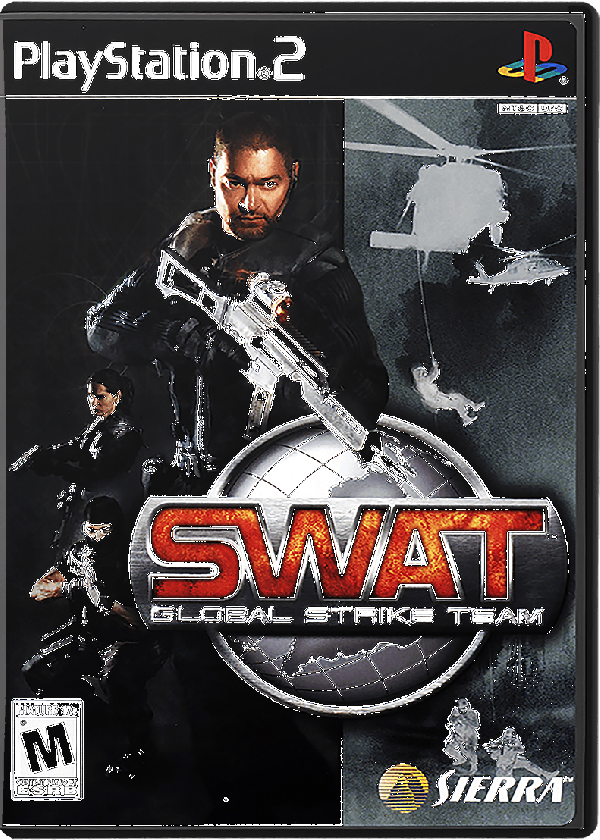
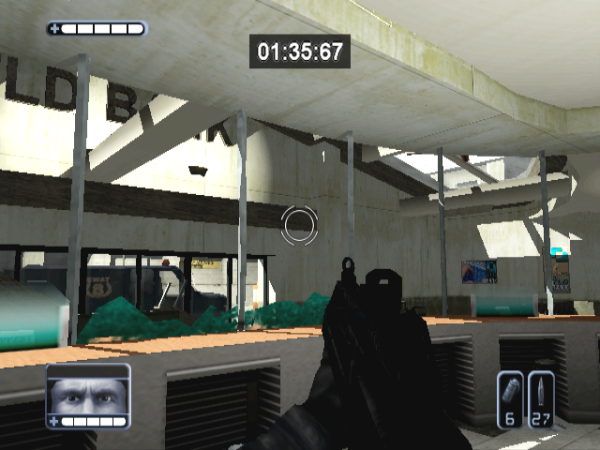
GETTING STARTED
•
i.LINK (IEEE1394) connector
Set up your PlayStation®2 Computer Entertainment System according to its instruction manual. Make sure the MAIN POWER switch (located on the back of the console) is turned ON. Press the RESET button.
When the power indicator lights up, press the button and the disc tray will open. Place the SWAT: GLOBAL STRIKE TEAM™ disc on the disc tray with the label side facing up. Press the button again and the disc tray will close.
Attach game controllers and other peripherals, as appropriate. Follow on-screen instructions and refer to this manual for information on using SWAT: GLOBAL STRIKE TEAM™.
MEMORY CARDS (8MB) (for PlayStation®2)
You may save your progress while playing SWAT: GLOBAL STRIKE TEAM™. To do so, you must have a memory card (8MB) (for PlayStation®2) inserted into MEMORY CARD slot 1 of your PlayStation®2.
Game data can only be loaded and saved to a memory card (8MB) (for PlayStation®2) in MEMORY CARD slots 1 or 2. Do not insert or remove a memory card (8MB) (for PlayStation®2) while the game is attempting to load or save game data.
SWAT: GLOBAL STRIKE TEAM™ Story
The Dragons want to tax the Omega Cartel or gain access to their territory. This war has spilled out onto the streets of the world's major cities, terrorizing ordinary decent citizens.
Airports have been closed down due to bomb threats, waves of car bomb attacks have swept the US, Europe, and the former Soviet Union, and street gunfights have spread beyond LA into the heartland of the US. In several major European cities, huge areas are considered virtual war zones and have effectively been abandoned by conventional police forces.
To meet this threat, a global police response is needed. And so SWAT: GLOBAL STRIKE TEAM™ is called in with orders to destroy both narco-terrorist organizations.
QUICK START
•
L1 button: Throw Grenade
•
L2 button: Activate Voice Recognition (if available)
•
R2 button: Access Equipment Menu
•
➤ button: Operate Reload
•
button: Issue Compliance
•
right analog stick: Look
•
left analog stick: Move / (When in zoom mode, allows for zoom adjustment)
•
directional button: Issue Squad Commands
•
START button: Pause Game
•
SELECT button: Show Objectives
Starting a CAMPAIGN
From the Game Select screen, select CAMPAIGN.
From the Profile Select menu, select an existing profile or create a new one.
When finished, you will be taken to the Select Mission menu. Select the mission you wish to play, in this case, the first mission.
Set the desired difficulty level of the mission. Doing so will take you through the mission's briefing. You may only select a difficulty level that is equal to or less than the level of difficulty from the previous mission.
After the briefing, you may change some of your equipment using the Equipment Select screen. Once completed, you will move on to your first mission.
Starting a Cooperative Game
From the Game Select screen, select COOPERATIVE. Note: There must be two controllers connected for this game mode to be accessible.
From the Profile Select menu, select an existing profile or create a new one. Both players need to create or choose preexisting profiles before advancing.
When finished, you will be taken to the Select Mission screen. Select the mission you wish to play.
Set the desired difficulty level of the mission. Doing so will take you through the mission's briefing. You may only select a difficulty level that is equal to or less than the level of difficulty from the previous mission.
After the briefing, you may change some of your equipment using the Equipment Select screen. Once completed, the selected cooperative mission will begin.
Starting a Deathmatch Game
From the Game Select screen, select DEATHMATCH.
From the Profile Select menu, select an existing profile or create a new one. Each player needs to create or choose preexisting profiles before advancing.
Once a profile is created or chosen, a player may confirm his selections and prepare for everybody else to accept, change a character's skin, or adjust controller options. Before proceeding, at least two players must confirm to start the game.
The Game Type screen comes up and allows the players to choose the game style they wish to play. Some game styles have additional options to select from before choosing a game map to play on.
After the game type and map are selected, players will be allowed to change weapons and continue on to game play.
Game Select Screen Selections
From the Game Select screen, the player has the following selections to choose from:
Campaign
The Campaign mode in SWAT: GLOBAL STRIKE TEAM™ allows the player to play the missions in order from start to finish through an unfolding storyline. Completing a mission in Campaign mode will unlock the next mission in Campaign mode.
Time ATTACK
Selecting Time Attack begins a new Time Attack game or resumes one already in progress. A Time Attack game differs from a Campaign game in that the player has a limited amount of time to complete the mission. The exact