Introduction
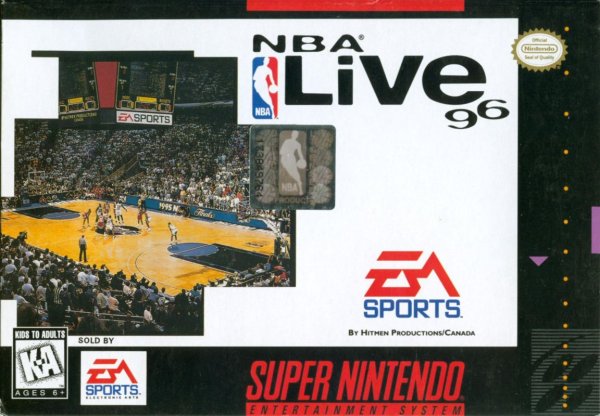
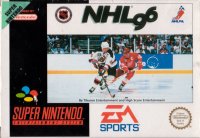
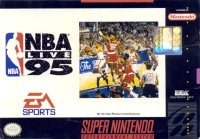
Welcome to NBA Live, year two! In its first incarnation, NBA Live 95 set the b-ball world on fire on its way to becoming the top-selling five-on-five basketball game of all time. But we're not resting on last year's props—we put our pointy little heads together to add even more phat features to NBA Live 96. We listened to NBA players, net surfers, and you, the loyal EA SPORTS™ customer. Here's hoping you like what ya get. The Feature List
•
Exhibition, Season, and Playoff play, with battery back-up, All-Star game, and 1995-96 schedule.
•
All 29 NBA teams (including the Vancouver and Toronto expansion teams), 2 All-Star teams, and 4 Custom teams.
•
Real NBA players updated with complete 1994-1995 stats.
•
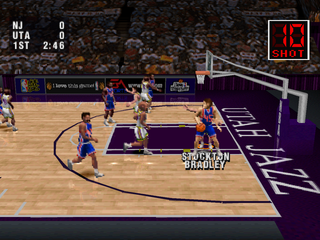
New player and crowd animations, including tip-ins, signature blocks, spin moves, crossover dribbles, and two-foot takeoff power dunks.
•
Improved strategy and options, including on-the-fly playcalling, animated play diagrams, full trades (trade any player, not just starters), expansion draft, shot summary diagrams, and roster management.
•
Ability to create and modify 24 custom players.
•
New free throw perspective with crowd interaction.
•
New music, crowd chants, arena sound FX, and more.
Starting the Game
•
1. Turn OFF the power switch on your Super Nintendo Entertainment System®. (WARNING: Never try to insert or remove a Game Pak when the power is ON.) •
2. Make sure a Controller is plugged into controller socket 1 on the Super NES®. If you're playing against a friend, plug the other Controller into controller socket 2.
•
3. Insert the Game Pak into the slot on the Super NES. Press firmly to lock the Game Pak in place.
•
4. Turn ON the power switch. The EA SPORTS™ and NBA Live 96 title screens appear. If you don't see them, begin again at step 1. •
5. Press START after each screen to proceed to the GAME SETUP menu.
First Run
Never played NBA Live before? Don't fret, 'cause this section is for you. To make your first run, follow these handy guidelines: •
1. From the GAME SETUP menu, press START to proceed to an Exhibition game with the default options. (Note: The first time you start a game, you will be prompted to perform an expansion draft before continuing. Press START three more times to proceed through an AUTOMATIC DRAFT, then you return to the GAME SETUP menu.)
•
2. From the TEAM SELECT screen, press B to toggle between the two teams, and Control Pad ↔ to change the highlighted team. Press START, and the PLAYER SETUP screen appears.
•
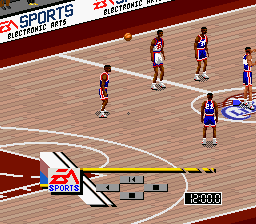
3. Control Pad ↔ to select the team that you'll control, and press START. Game introduction screens appear; keep pressing START until the teams line up for the game-opening tip-off.
•
4. You control the player over the star—in this case, the center. When the ball goes up, press X to make your player jump.
•
5. To make your player run around, press the Control Pad in the direction you want to move. To run up and down the court, press diagonally. To run extra fast, press the R button to trigger Turbo mode.
•
6. To pass the ball on offense or switch to the player closest to the ball on defense, press B.
Game Setup Modes
•
EXHIBITION: Play a single game with any NBA, All-Star, or Custom teams.
•
SEASON: Start a new Season where you control an NBA team.
•
PLAYOFFS: Start a new Playoff tournament.
•
LOAD SERIES: Continue a Season or Playoff saved in one of the two memory slots.
Game Styles
•
ARCADE: Freeform basketball where the players never tire or get injured, and fouls and other violations aren't called by the refs.
•
SIMULATION: Absolute realism. Players tire, get injured, and foul out, and you must substitute accordingly.
•
CUSTOM: Use last SET RULES menu settings for rules and simulation options.
Difficulty Levels
•
ROOKIE: The easiest level. It's easy to score, and the computer team isn't too hard on you.
•
STARTER: Average difficulty; the computer plays harder on defense.
•
ALL-STAR: Showtime! It's difficult to make steals or block shots, and the computer offense and defense are cranked to the max.
Quarter Length
•
The length of a quarter can be set to 3, 5, 8, or 12 MIN.
Roster Setup, Rules, and Options
•
ROSTER SETUP: Go to ROSTER SETUP menu to edit, trade, and draft players.
•
SET RULES: Go to SET RULES menu.
•
SET OPTIONS: Go to SET OPTIONS menu.
Player Setup Screen
A symbol for every Controller plugged into the system appears on this screen. Up to five players may play if a Multi-Player Adapter is attached. In addition to selecting the team you control, you can select, enter, and delete user names to personalize your controller to track your user stats.
Multiple Player Games
The Multi-Player Adapter lets up to five players play competitively or cooperatively. Just plug the adapter into Controller Socket 2 on the