Console Overview
Starting Up
1. Set up your PlayStation® game console according to the instruction manual. 2. Make sure the power is off before inserting or removing a compact disc.
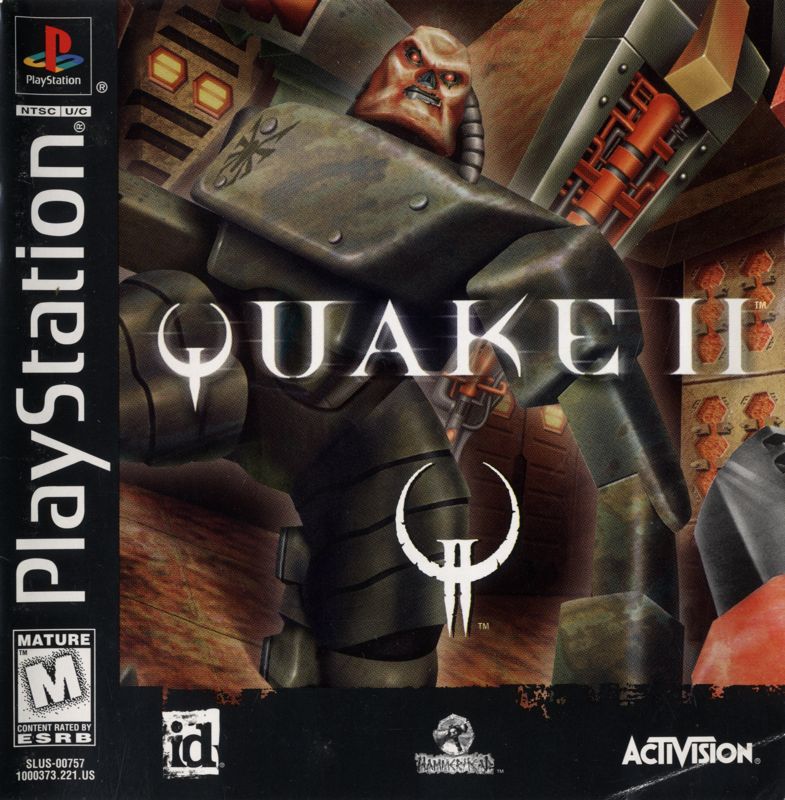
3. Insert the Quake II™ disc and close the disc cover.
4. Insert game controllers and turn on the console.
5. Follow the on-screen instructions to start a game.
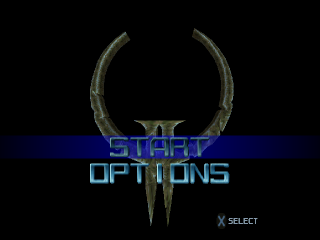
When the game is started you will see an introductory movie. Press the button to end the movie and bring up the Main menu.
It is recommended that you do not insert/remove peripherals once the power is turned on.
Main Menu Navigation
Press the Directional Buttons up or down to move the highlight to your desired selection, then press the button to select that item. Press the button to go back to the previous menu.
Start
Select this option to start a single or multiplayer game. The Mode menu will then appear where you can choose to begin a single or multiplayer game.
If you select Single from this menu, you will be prompted to start a new game and select a skill level, or load a game from a memory card. If you select Multiplayer from this menu, you will be prompted to set up a multiplayer game.
Multiplayer
You can play against up to three of your friends (or enemies) in either Deathmatch, Team Deathmatch, or Versus. Choose your player, choose your team, choose your arena, and let the bloody battle begin.
You must have more than one Controller inserted in order to play the multiplayer games.
Starting Multiplayer Games
1. From the main menu select the Start option.
2. From the Mode screen select the Multiplayer option.
3. At the Multiplayer game select screen, select which game you would like to play.
4. Select the number of players, arena, frag limit, time limit, and game variables.
5. Use the Game Start screen to choose your color or team and set up your individual player options.
6. Once every player has pressed the button to confirm that they are ready, the game will begin.
Multiplayer Game Types
There are three game types included in Quake II. Each game has its own unique rules, scoring, and method for winning. Any of the multiplayer games can be played with 2-4 players in any of the arenas.
Deathmatch
Deathmatch games are an every man for himself, free for all war! In deathmatch there are no teams. The only objective is to kill your enemies, and kill them often.
Rules of Deathmatch
There is only one rule in Deathmatch - Kill or be Killed!
Deathmatch Scoring
You are scored one Frag Point for every time you kill the other team. The player with the most Frag points at the end of the game wins. The Score screen that appears after the game, displays the standings of that game based on Frag Points. The winner's name and score will be indicated.
Team Deathmatch
Team up to destroy your opponents in an all out battle for Frag points. This game can be played in 2-on-2, 2-on-1, or 3-on-1 competitions.
Rules of Team Deathmatch
1. Kill members of the other team.
2. A Frag Point is lost for killing a teammate.
3. Frag Points are counted for the entire team. If you have set a frag limit in the Multiplayer options, it applies to all team members Frag Points.
4. The winner is determined by which team has the most combined Frag Points.
Team Deathmatch Scoring
You are scored one Frag Point for every kill. Frag Points from all team members are added together to determine which team is the winner. The Score screen that appears after the game, displays which team is the winner, has the most combined Frag Points, as well as individual frag counts.
Versus
If you really want to know who the best of the best is, this is the game!
Rules of Versus
1. There are no health or ammo powerups in the level. 2. When a player dies, they are out for the rest of that round. The goal is to be the last player alive in the round.
3. The last player alive will receive one point for winning the round. All players then restart in the next round.
4. The first player to win the set number of rounds wins the game.
Versus Scoring
The last player alive in the round receives a point for winning the round. The first player to win the set number of rounds, wins the game.
Multiplayer Game Setup
From the Multiplayer Game Setup screen modify the game options to set up your multiplayer game.
Number of Players
Press the Directional Buttons left and right to select the number of players to enter the game. Remember, each player needs to have a Controller connected to the game console.
You will need a MultiTap if you would like to play with three or four players. Please insert controllers sequentially in the Multi Tap e.g. insert a Controller in Controller port 1-A first then Controller ports 1-B, 1-C and 1-D.
Always use the Multi Tap in Controller port 1.
Arena Selection
Press the Directional Buttons left and right to select the arena that you would like to play.
Frag Limit
Press the Directional Buttons left or right to change the frag limit. When a player reaches the Frag Limit, the
.png)













_1.png)

.png)