PLAYING THE GAME
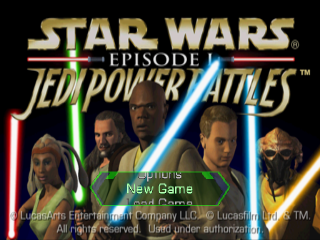
Upon starting Jedi Power Battles, you will be presented with the Main Menu. It allows you to make the following selections: New Game, Load Game, and Options.
New Game
Highlight this option and press the Button to begin the game. Once you've chosen the number of players, you are asked which mode you'd like to play in, Easy or Jedi.
Easy is a good place for beginners to start. Jedi mode is for more advanced players. The game can be completed in either mode, but the game's secret features can only be unlocked in Jedi Mode.
Load Game
If you have previously played the game, you can choose this option to load a saved game from a PlayStation memory card in Slot 1. You can save up to three unique games. When your Jedi reaches a new level, his/her progress can be saved and the level is unlocked for that character.
Options
Select this option to adjust Jedi Power Battles to your liking with the following variables:
•
Audio: Press the Button to go to the Audio Setup screen. Press up and down on the Directional Pad to select between the options and press left and right on the Directional Pad to adjust each option:
•
Music: Turn the game's music on or off.
•
Music Mode: Select between stereo or mono sound.
•
Music Volume: Adjust the volume of the game's musical score.
•
SFX Volume: Adjust the volume of the game's sound effects.
•
Controls: Press the Button to go to the Controller Configuration screen. Press up and down on the Directional Pad to select between the options and press left and right on the Directional Pad to adjust each option:
•
Controller Setup: Select between five different controller configurations.
•
Vibration (DUALSHOCK™ analog controller only): Turn the vibration function on/off.
•
Walk/Run Limit (Analog Pads only): Adjust the threshold to determine how far you have to push the Analog Pad in any direction to run.
•
Restore Default Options: If you want the game to return to the original settings, select this option.
At any time you can press the Button to revert to the previous Option menu or to cycle back to the Main Menu.
Character Selection Screen
Upon selecting the option to start a New Game, you are asked to choose between a one- and two-player game. Press the Directional Pad up and down to switch between the options and press the Button to lock in your selection.
Single Player Character Selection Screen
Once you've chosen the number of players, you are asked to make an important choice as to which character you want to play in the game. There are five Jedi: Obi-Wan Kenobi, Qui-Gon Jinn, Mace Windu, Adi Gallia, and Plo Koon.
Press the Directional Pad left or right to move between the different characters. Once you have selected your character(s), press the Button to begin. In two-player games it is not possible to have both people play as the same character.
Level Select
If you are loading a previously saved game, this screen will appear after choosing your Jedi. Press the Directional Pad up and down to select between the levels in the game.
Levels unlock themselves on this menu once you beat them in the game. To find out more information on the different levels, read the Levels section.
The Game Begins
After selecting the level you are presented with a brief statement of the level goal(s). After reading this message, press the Button to begin.
The Pause Menu
When playing the game, you can press the Start Button at any time to bring up the Pause Menu. From this menu you can change your control configuration, adjust audio options, quit to the Main Menu, restart the level, or simply continue with the game where you left off.
Press the Button to make your selection.
GAME SCREEN
Although the scenery and action on the screen is constantly changing in Jedi Power Battles, there are a few elements of the game screen that are always the same: