Game Rules
Each game has two halves. Teams change sides after halftime. The team with the highest score at the end of the game wins.
•
Score: Two points per basket. Three points are awarded for making a basket from outside the three point line.
•
Shot Clock: You must shoot the ball within 30 seconds of receiving it. The Shot Clock is reset when the ball changes possession or goes out of bounds.
•
Back Court: If you throw or carry the ball from your opponents' half of the court back to your half of the court, your opponent is awarded a throw in at the half court line.
Player Controls
•
Active Player: You control the active player on the screen with the two arrows behind him. The player closest to the ball is automatically selected as the active player.
•
Running and Dribbling: The arrow key controls the player's movement in eight directions. When the player has the ball, he automatically dribbles it (no traveling penalty).
•
Passing: Use the arrow key to point the active player in the direction you wish to pass, then press the B Button. You must be pressing the arrow key as you press the B Button for a successful pass.
•
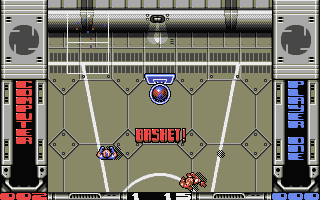
Shooting: You can shoot from anywhere on your opponent's half of the court. To shoot, release the arrow key and press the B Button. If your active player is not facing the basket, he will automatically turn and shoot. If he is already facing the basket, he will shoot faster. The basket is the same color as the opposing team. After you make a basket or a three pointer, the opposing team is awarded a "throw-in" right behind the basket.
•
Tackles: If your active player does not have the ball, you can make him dive forward. If he impacts with an opponent, he tackles him and knocks the ball loose. Make your active player dive in any direction by pressing the B Button while holding the arrow key.
•
Jumping: If your active player does not have the ball, you can make him jump by releasing the arrow keys and pressing the B Button. Jump to catch the ball in the air or intercept your opponent's shot.
Throw In
If you throw the ball out of bounds, your opponent is awarded a throw in. The computer automatically brings a player to throw the ball into play. The players closest to the ball on both teams become the active players.
If your team is throwing in the ball, position your active player away from any opponents and press the B button. Your teammate will throw the ball to your active player. If you don't see your active player, look on the map in the lower left hand corner to find him. The clock is always stopped during the throw in.
Look out for quick tackles coming from your opponents as you receive the ball!
Single Game
If you select Single Game from the Main Options menu, you are taken to the Skill Options menu. You can select from the four skill levels: Beginner, Amateur, Advanced and Professional. Each player's skill level is determined from the selection.
League Game
There are eight teams in each league. Each team plays every other team twice, so each team plays 14 games in a season. At the end of the season, the first two teams in each league move up. The bottom two teams are relegated.
•
Start New League/ Edit League: Select a team with the A Button. The Edit Team screen appears. In the Edit Team screen, you can change the team name and color, and set the team to be controlled by the computer or a human.
•
Continue: This takes you to the League Option menu, and the league begins. At least one team must be controlled by a human. Otherwise you will not be able to continue.
•
Continue League: If you have saved a league, you can reload it and continue playing. Up to eight games can be saved in the battery backup memory. Note: You cannot save a game from this point.
How to Edit a Team
Select the team's name, color or player and press the A Button. When completed, select Exit.
•
Team Name: Use the following commands to edit the name:
•
DEL: Delete a character under the cursor.
•
CAP: Change characters to upper or lower case (Select key).
•
Note: The cursor can also be moved left and right with the L and R buttons. Capital or small case letters can be selected with the Select Button.
•
Color: Press the A Button to select your team's color.
•
Player: Press Up or Down to select between Computer or Human. If you make the team Human, the team is controlled by a human player. Note that ALL 8 teams in the league can be set to Human, allowing 8 people to compete against each other!
League Menu Options
•
Today's Matches: When this option is chosen, it ends the current player's changing of positions, trading, etc. The next human player can then edit his/her team. When all human players have finished editing their teams, the week's pairings for each league and the results are displayed. The games with human participants will be played when the appropriate league is shown. Keep an eye on the bottom section of the screen. It tells you which team is being edited. All teams use the first joypad for editing.
•
View League: Lists the standings of all the teams in each league including records of wins, losses and