GETTING STARTED
Do not insert or remove peripherals or memory cards once the power is turned on. You will need a memory card to save your games.
1. Set up your PlayStation™ game console according to the instructions in its Instruction Manual. 2. With the power OFF, open the disc cover and insert the Frogger® disc. 3. Insert a memory card into the memory card slot if you wish to load or save information during play.
4. Close the disc cover before turning the power ON.
You will not be able to save your progress if you don't use a memory card. Make sure there is at least one free block on your memory card before beginning your game.
You are not able to swap memory cards during play and you must leave the memory card in the memory card slot for the duration of play. You must insert the memory card in the first slot of your Sony Multi Tap if you are using one.
PlayStation™ Console Diagram
CONTROLLING FROGGER®
•
Heat seeking tongue, Makes Frogger allows you to gather power-ups* •
The 'start' button pauses the game during play
•
Power croak allows you to call baby frogs
•
Super hop, allows you to hop extra high*
*May have special uses when combined with certain power-ups.
Camera Rotation
YOU MAY ALSO ROTATE THE CAMERA WITH THE FOLLOWING BUTTON PRESSES (OPTION NOT ALWAYS AVAILABLE):
•
R2 Rotate the camera clockwise by 90 degrees
•
L2 Rotate the camera anti-clockwise by 90 degrees
Controller Notes
•
You may also choose other controller configurations in the options menu.
•
You may reset the game by holding the 'select' button, then pressing the 'start' button for 2 seconds.
•
See "Special Level" for an exception to the typical controls.
Options Menu
•
Save Frogger® Data (for use only with a memory card) •
Change the configuration of the controller to customize the buttons for your own games
•
Adjust sound effects volume
SINGLE PLAYER GAME
Collect five baby frogs in each level to advance through the Frogger® levels, within the time-limit. SELECTING A SINGLE PLAYER GAME
•
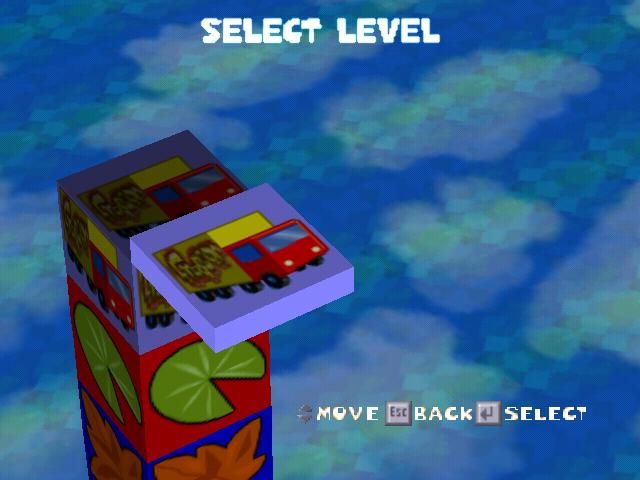
In the Level Select screen you can scroll up and down the level stack by using the UP and DOWN directional buttons.
•
There are nine different worlds, or zones, with multiple levels in each. (NOTE: Not all of the levels or worlds are available at the start of a new game).
•
Levels that are available to play are highlighted in color; locked levels will be in black and white.
•
To select a game level, highlight the level and press the X button. A graphic and the top three best scores/times for that level will appear. The best time is the shortest time it's taken anyone to complete that level.
•
To undo your selection, press the "triangle" button.
•
To enter the level, press the X button again.
LEVEL COMPLETE
When you complete a level, the next level in the zone will be opened up and you will be prompted to enter the next level, or select a new level to go into. (This is a great way to build high scores.)
If you want to continue from where you left off, the next time you play Frogger, you must go to the Options screen and "Save Frogger Data" before turning off your PlayStation™. (See LOADING & SAVING.) SPECIAL LEVEL
Once you unlock the Caves Zone, you will discover a special level called "Frogger Goes Skiing". This is the only level where you can't 'Superhop', the button will activate your heat seeking tongue, and the button will activate your power croak. You figure out the rest... ZONE COMPLETE
After completing a zone you will be sent back to the Game Selection screen where you can see your progress and choose which level you'd like to enter next. Your total score will continue to accumulate until you lose your last life.
GAME OVER
If you lose all of your lives at any point in the game, your game is over. You may, however, continue as many times as you like, by just reselecting a level to play from the Game Selection screen.
REMEMBER: YOU MUST USE A MEMORY CARD AND SELECT "SAVE FROGGER DATA" FROM THE OPTION SCREEN, IF YOU WANT TO SAVE YOUR PROGRESS AND HIGH SCORES.
MULTI-PLAYER GAME
Up to four players can simultaneously race different colored baby frogs in five specially designed levels in split screen. If playing with more than two players, be sure that the Multi Tap is inserted.
Be sure a controller is always inserted into controller port 1-A and other controllers are plugged into the multi-tap sequentially (e.g., 1-A, 1-B, 1-C & 1-D). If using a memory card and Multi Tap, you must have the card inserted into the memory card port above controller 1-A. If the Multi Tap is being used, all controllers must be plugged into the Multi Tap, and not into the spare controller port in your PlayStation™. STARTING A MULTI-PLAYER GAME
•
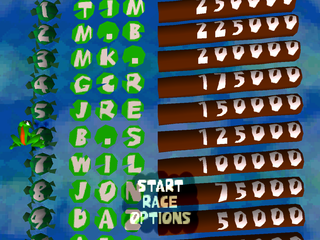
Select race from the START/RACE/OPTIONS screen
•
Each player should press the X button on their controller
.png)

.png)

.png)

.png)




.png)



.png)





 (Es,It,Pt).png)
.png)



.png)


.png)