SETUP
Set up your PlayStation® game console according to its Instruction Manual. Make sure the power is OFF before inserting or removing a compact disc. Insert the Tales of Destiny® II disc and close the disc cover. Insert a DUALSHOCK™ analog controller or standard PlayStation controller into controller port 1 and turn ON the PlayStation game console. Follow the on-screen instructions to start the game. MEMORY CARD
To save game settings and progress, insert a MEMORY CARD into MEMORY CARD slot 1 of your PlayStation game console BEFORE starting play. You can load your saved games from any MEMORY CARD containing previously saved Tales of Destiny II games. Saving Tales of Destiny II MEMORY CARD data requires one free block. Using the Multitap
Up to 4 Players can join in and fight cooperatively in battle by using the Multitap (sold separately). When using the Multitap, Players 1 through 4 control the first four characters from left to right.
Up to four controllers can be connected with one Multitap. The Multitap must be connected into Controller Port 1. When connecting controllers to a Multitap, always connect a controller to Controller Port 1-A of the Multitap first, followed by Controller Port 1-B, 1-C, and 1-D.
Note: To control individual characters in battle, the Battle Mode must be set to SEMI-AUTO. Set the Battle Mode from the SKILLS option on the Main Menu.
STARTING THE GAME
Watch the opening movie, then press the START Button to display the Title Screen Menu. Press the Directional Buttons to make a selection and press the Button to confirm your choice. Skip the opening movie by pressing the START Button at any time.
New Game
Select NEW GAME to begin play.
Load Game
To load saved game data and continue a game in progress:
•
Select LOAD GAME and press the Button.
•
Press the Directional Buttons to select a MEMORY CARD slot and press the Button.
•
Press the Directional Buttons to select the saved data you want to load and press the Button.
See "Save" on Pg. 29 for instructions on how to save your progress throughout the game.
Customize (Options)
Customize game options. To change game options on the Customize Screen:
•
Press the Directional Buttons UP/DOWN to select a setting and press the Button.
•
Press the Directional Buttons LEFT/RIGHT to change a setting.
•
Press the Button to confirm the new settings and return to the previous screen.
Message Speed
Select the speed at which the text messages are displayed. Lower number settings increase the message speed.
Party Display
Select CHARACTER or the character's FACE to display on the Menu Screen.
Difficulty
Select NORMAL or HARD battle difficulty.
Battle Button Config
Configure button controls used in battle. Set the cursor to BUTTONS and press the Button to open a new menu window. Then press the Directional Buttons UP/DOWN to select a button, and press the Directional Buttons LEFT/RIGHT to adjust the button settings.
Sound Volume
Change game sound settings and perform a sound test. Press the Directional Buttons LEFT/RIGHT to adjust volumes.
•
BGM VOLUME - Background music.
•
SE VOLUME - Sound effects.
•
VOICE VOLUME - Character voices.
•
OUTPUT - Select MONO or STEREO according to your television system.
•
SOUND TEST - Press the Button to open the Sound Test Screen.
To perform a sound test:
In the Sound Test Screen, press the Directional Buttons UP/DOWN to select an option, and press the Directional Buttons LEFT/RIGHT to adjust the setting. Press the Button to listen to the selected Sound. (BGM can also be controlled using the icons displayed at the top of the screen.) To return to the previous screen, set the cursor to the far left icon and press the Button.
•
Return to the Customize Screen.
•
BGM - Listen to background music.
•
SE - Listen to sound effects.
•
OUTPUT - Adjust the sound output setting.
•
PLAY TYPE - Select the method of playing background music. Select NORMAL to play the selected music. Select CONTINUE to play music continuously in a numerical order. Select RANDOM to play music continuously in a random order.
•
BGM VOLUME - Adjust the BGM volume.
•
SE VOLUME - Adjust the sound effect volume.
•
VOICE VOLUME - Adjust the character voice volume.
•
PANPOT - Adjust the LEFT/RIGHT balance of sound volume.
Window Color
Adjust the window color of MENU, MAIN, ENEMY, and SYSTEM Windows.
Battle Voice
Turn ON/OFF voices played during battles.
Event Voice
Turn ON/OFF voices played during events.
Controller Vibration
Turn ON/OFF the controller vibration function on DUALSHOCK™ analog controllers.
Encounter
Turn ON/OFF the option to view the entire battle field at first encounter.
Target Display
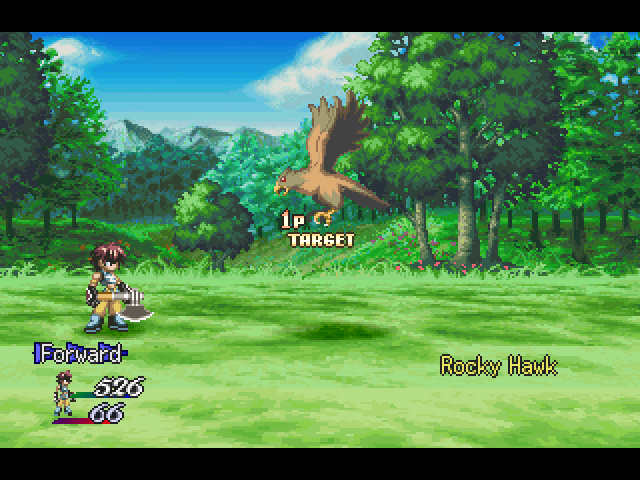
Turn ON/OFF displays indicating the targeted enemy.
Adjust Screen
Press the START Button at the Customize Screen to adjust the screen position. Press the SELECT Button to return the screen position to default. Press the START Button to confirm the new setting and return to the Customize Screen.
PLAYING THE GAME
Travel to various towns and villages to interact with people and gather hints. Defeat enemies to gain battle experience and develop your characters' skills and attributes.


_1.png)